Category: Solving Code Problems

  • Deduplicating 14K Posts (Part II)

    In my last post, I walked through the start of how I deduplicated 14,000 posts Document Library Pro posts. That post covered how I crafted a script to search through PDF attachment posts and delete any duplicates based on the filename.

    The reason for starting with PDFs was to make sure that if a dlp_document post referenced any duplicate PDF attachments, it would be deleted. By cleaning out the PDF’s first, I had a clean base to check against the dlp_documents.

    Now, it was time to move on to cleaning out the actual dlp_document post type.

    jb-dlp-document-deduplication.php

    Once I had written the script to deduplicate the PDFs, I was able to use it as a base for the dlp_document posts. Many of the properties and functions are the same with some slight name tweaking for dlp_document instead of pdf_media.

    The general concept is the same, there are new WP_CLI commands introduced which run the deduplication script, clear out the options table, and clear out any log files.

    One of the ways this script differs is that rather than saving the earliest posts as the originals, we are saving the newest. With the PDFs, we saved the earliest posts to avoid any -1, -2, or other suffixes added to the URLs and file names. However, with the dlp_document posts, the most recent post has the most complete information regarding taxonomies, and excerpts. So rather than querying the database in ascending order, we pull the dlp_document posts in descending order by their post ID.

    $results = $wpdb->get_results(
       $wpdb->prepare(
          "
          SELECT * FROM {$wpdb->posts}
          WHERE post_type = %s
          AND ID < %d
          ORDER BY ID DESC
          LIMIT %d
          ",
          'dlp_document',
          $this->start_post_id,
          $this->batch_size
       )
    );
    

    Another way this script differs is that rather than handling just duplicate posts, we also had to verify that the PDF file stored in the post meta actually exists. If the file doesn’t exist, the dlp_document post needed to be deleted. It doesn’t help anyone to have a dead link displayed on the site.

    Rather than trying to shove this extra check into the current process of handle_duplicate_post(), I decided to create a separate flow for posts where the PDF file did not exist. This allowed me to log the instances of duplicate posts and missing PDF’s separately.

    If you have read the previous post, you are generally familiar with the flow of handling duplicate posts. Rather than repeating the concepts, here I will focus just on checking for missing PDFs.

    It starts within the foreach loop in deduplicate_dlp_docs(). Before checking for a duplicate document, the loop check that the PDF is valid by calling determine_if_pdf_exists().

    determine_if_pdf_exists()

    The method takes the object of the dlp_document post as an argument. This object contains the ID and title of the document post. We use this to handle fetching the post meta where the PDF information is stored.

    Here is where things got tricky; the document library pro plugin allows a PDF to be saved to a post using one of two options–a direct URL or a post ID. The posts in the customer’s database used both options intermittently.

    In order to determine how the PDF is saved to the post, the first thing I had to fetch was the “link type”

    // Confirm that PDF file is attached by checking the post meta
    $pdf_link_type = get_post_meta( $dlp_document_post->ID, '_dlp_document_link_type', true ) ?? null;


    The expected results for $pdf_link_type are either “url” or “file”. If the result is anything else, we should delete the dlp_document post because it is incomplete without an attached PDF.

    The type of link determines the meta key for the post meta containing the actual PDF information. For example, for url the meta key is _dlp_direct_link_url. For file, the meta key is _dlp_attached_file_id. The simplest way to handle all three cases (url, file, anything else) was to create a switch statement.

    For the url and file cases, I pull the post meta from the data base. If the post meta exists, then I check that the value it provides (e.g. a URL or post ID) actually exists.

    If the data is sound, it is returned to deduplicate_dlp_docs() as part of an array. Otherwise, handle_missing_pdf_file() is called.

     switch ( $pdf_link_type ) {
        case 'url':
            $pdf_file_path = get_post_meta( $dlp_document_post->ID, '_dlp_direct_link_url', true ) ?? null;
            // If the post meta does not exist, the PDF file is missing
            if ( null === $pdf_file_path ) {
               $this->handle_missing_pdf_file( $dlp_document_post, $pdf_link_type, null );
               return $attached_pdf_meta;
            }
    
            // If the post meta exists, check that the file exists
            if ( ($pdf_file_path && ! file_exists( $pdf_file_path ) ) ) {
               $this->handle_missing_pdf_file( $dlp_document_post, $pdf_link_type, $pdf_file_path );
               return $attached_pdf_meta;
            }
    
            $attached_pdf_meta['link_type'] = $pdf_link_type;
            $attached_pdf_meta['pdf_file'] = $pdf_file_path;
            break;
        case 'file':
            $pdf_post_id = get_post_meta( $dlp_document_post->ID, '_dlp_attached_file_id', true ) ?? null;
            // If the post meta does not exist, we assume the PDF file is missing
            if ( null === $pdf_post_id ) {
               $this->handle_missing_pdf_file( $dlp_document_post, $pdf_link_type, null );
               return $attached_pdf_meta;
            }
    
            // If the post meta contains a document post ID, check that the document post exists
            if ( ( $pdf_post_id && ! get_post_status( $pdf_post_id ) ) ) {
               $this->handle_missing_pdf_file( $dlp_document_post, $pdf_link_type, $pdf_post_id );
               return $attached_pdf_meta;
            }
    
            $attached_pdf_meta['link_type'] = $pdf_link_type;
            $attached_pdf_meta['pdf_file'] = $pdf_post_id;
            break;
        default:
            // If the DLP Document post is neither a direct link nor a media library attachment, it should be deleted
            $this->handle_missing_pdf_file( $dlp_document_post, $pdf_link_type, null );
            break;
    }
    

    handle_missing_pdf_file()

    Similar to handle_duplicate_post(), this method warns the user that a document with a non-existant PDF was found and confirms if the user wants to proceed with logging (dry-run) or deleting(for real) the dlp_document post.

    In both scenarios, information about the dlp_document post and PDF are gathered to be later logged into a CSV.

    gather_missing_pdf_posts_data()

    This method takes the post object for the dlp_document post and the meta data for where a PDF was expected to exist as arguments. It then pushes it into an array that is saved with the stash_of_missing_pdf_posts array.

     $this->stash_of_missing_pdf_posts[] = array(
         'dlp_document_post_id'      => $dlp_doc_post->ID,
         'dlp_document_post_title'   => $dlp_doc_post->post_title,
         'pdf_link_type'             => $pdf_link_type,
         'missing_pdf_id_or_url'     => $missing_pdf_id_or_url,
    );
    

    Once the missing dlp_document is logged and handled, the code returns to determine_if_pdf_exists() where an empty array is returned to deduplicate_dlp_docs(). The empty array indicates to the foreach loop, where everything started, that there is nothing else to do with this post. There is no point in checking for if the post is a duplicate since it was already logged and possibly deleted. The loop continues on to the next post in the query results without checking for a duplicate post.

    If determine_if_pdf_exists() does return a not-empty array, then the code continues processing through to check if the dlp_document post is a duplicate of a post which was already found and tracked.

    Once the foreach loop concludes, both the missing PDF and duplicate posts are logged. I used separate CSV files to allow different information to be stored in each CSV and to make it easier to parse how many posts were true duplicates and how many had invalid documents saved in the post meta.

    Script Clean Up

    Since there are two types of log files for the dlp_document posts, I created a third clean-up commanddlp-document-missing-pdf-delete-logs. This gives the user flexibility to delete just the duplication log files (via dlp-document-dedup-delete-logs) or the logs for the missing PDFs.

    Results

    PDF Deduplication:

    • Processed 6994 PDF posts
    • Total duplicate posts found: 820
    • Unique PDF posts found: 6174

    DLP_Document Deduplication:

    • Processed 14,402 DLP Document posts
    • Total duplicate posts found: 6108
    • Total posts with missing PDF file found: 3151
    • Unique DLP Document posts found: 5143

    Now the library is all cleaned up. There are no more duplicate posts and all links to PDFs should work properly.

    Have a site which needs some data clean up? I’m available! Fill out the contact form below to reach out.

    Go back

    Your message has been sent

    Warning
    Warning
    Warning
    Warning.

  • Deduplicating 14,000 Posts

    I have been recently working with a client to give their site a refresh. Rather than rebuild the entire thing, they wanted to make sure their current site was up-to-date and make a few key functionality improvements. One of these improvements is to clean up a library of PDF files they have hosted using Document Library Pro.

    The Problem

    As near as I can tell, whoever set up the library did a post import. But things didn’t work the way they expected so they did another import. And another one…all without clearing out the previously imported posts. This resulted in multiples of each document being added to the website.

    For fun additional complexity, each of the “dlp_document” is tied to a PDF file which may be uploaded via the Media Library or attached to the post via the “direct URL” meta data. Or, the file may not exist at all. This means we also need to remove any duplicate PDF files. Plus, check that any file which the dlp_document has saved in the meta-data actually exists.

    The Process

    Manually checking 14K+ documents would not only be time consuming, but also lead lots of room for error. Rather, I decided to do the clean up by writing scripts within a plugin. The scripts are then executable by custom WP-CLI commands.

    When it came to what order of actions needed to be taken, I decided to approach the problem by breaking it down into two scripts:

    1. Remove any duplicate PDFs
    2. Remove documents posts where a PDF does not exist
    3. Remove any documents posts which is a duplicate

    The Code

    You can find the plugin code here: https://github.com/JessBoctor/jb-deduplication

    The main plugin file, jb-deduplication.php, is really basic. Essentially, it is just used to load the two script files into WordPress.

    jb-pdf-media-deduplication.php

    The jb-pdf-media-deduplication.php file holds the PDF_Media_Deduplication_Command class plus two other clean up commands.

    There are a number of properties listed in PDF_Media_Deduplication_Command class. The first four are all arguments which control the scope of the script.

    • $dry_run – Run the script without actually deleting things
    • $skip_confirmations – Skip manually checking duplicates
    • $batch_size – The number of posts to check
    • $start_post_id – Where to start the query

    The remaining properties are all used by the script to track progress.

    • $last_post_id – The ID of the last post to get checked
    • $unique_post_titles – An array of unique post titles which can be checked agains for duplicates
    • $duplicate_posts_to_log – A nested array of data which tracks duplicate posts which are found
    • $total_duplicate_posts – A count of the duplicate posts which are found

    __invoke

    This function is similar to __construct as it is the first thing called when the command is run. In the case of WP-CLI, you only want to use the __construct function if you are using data outside of the class to or the command arguments to run the command. For example, if you had options stored in the wp-options table. You could fetch those options, pass them to a new instance of the class, and then when the WP-CLI command is run, it would use those pre-set options.

    In the case of this script, all we need are the arguments passed from calling the WP-CLI command, so we can skip __construct. Instead, we just use __invoke to set our class properties and get the ball rolling.

    $batch_size, $start_post_id, and $unqiue_post_titles

    Since there is such a large number of posts which needed to be sorted, I wanted to be able to run the script in batches. This way, I could spot check small amounts of posts. However, since the goal is to find unique posts across the whole data set, I needed to figure out a way not to lose track of the progress made between different batches.

    determine_start_post_id()

    This method determines where a batch should start its post query. If the --start--post-id argument is passed with the WP-CLI command, then that is the post ID which is used as a starting point. However, I don’t want to have to remember where the last batch run ended. Instead, the $last_post_id property is store in the wp-options table as 'pdf-deduplication-start-post-id' (mouthy, I know). This way, if a user runs continuous batches, then the script can pull the next start post ID from the options table. If their is no post ID saved and no --start-post-id argument, then the start post ID uses the default property value of 1.

    In a similar way, I don’t want to lose track of the unique posts which were found during each batch run. The $unique_post_titles property is an empty array by default. To keep it up to date, if any unique post titles are found during a batch run, they are saved to the wp_options table as pdf-deduplication-unique-post-titles. When the __invoke function is called, it checks for this option and loads any previously found unique post titles to the $unique_post_titles property before starting the deduplication process.

    deduplicate_pdfs()

    This is where the main “deduplication” action happens. It gets called at the very end of __invoke once the class properties have been set up. The method does four things:

    1. Fetches all PDF attachment posts
    2. Handles the post if it is a duplicate or unique
    3. Updates the $unqiue_post_titles records
    4. Logs the result of the batch run

    get_pdf_posts()

    This is how we fetch the PDF attachment posts. It runs a simple query for any posts in the media library

    global $wpdb;
    
    $results = $wpdb->get_results(
       $wpdb->prepare(
          "
          SELECT * FROM {$wpdb->posts}
          WHERE post_type = %s
          AND post_mime_type = %s
          AND ID > %d
          ORDER BY ID ASC
          LIMIT %d
          ",
          'attachment',
          'application/pdf',
          $this->start_post_id,
          $this->batch_size
       )
    );
    

    One of the things which turned out to be key in the deduplication process is the order of the post results. Since we want to use the earliest version of the PDF file which was uploaded, to avoid keeping any PDF files with -1 or -2 suffixes, the post results have to be in ascending order.

    Once we have the results, we can set the $last_post_id property for the class. This will let us keep track of where the batch for the script ended.

    // Set the last_post_id property to the last post ID in the results, if any
    if ( ! empty( $results ) ) {
        $last_post = end( $results );
        $this->last_post_id = $last_post->ID;
    }
    

    The results get returned to deduplicate_pdfs() to be looped through a series of logic filters.

    To start, we save $post->post_title into a separate varaiable $post_title. This allows us to fuzzy match the post title against known unique titles by stripping out -1, -2, and -pdf from the post title without changing the original $post->post_title. Each of these variations of $post_title are checked against the $unique_post_titles array. If a match is found, the $post object and the ID of the post with the matching title get sent through handle_duplicate_post().

    If there isn’t a match from the four variations, then the post is considered unique. The post gets added to $unique_post_titles in a $post->ID => $post->post_title key => value pair.

    handle_duplicate_post()

    If a PDF attachment $post is considered to be a duplicate, we need to confirm what the user wants to continue, log the post, and most likely delete the $post and uploaded file.

    In the case of a dry-run (without skipping confirmations), the script will confirm if the user wants to log the duplicate PDF. In the case of the code being run for real, it will ask the user if they want to delete the post and file. If the user responds anything other than “yes”, then the script will exit mid-run.

    When the user gives a “yes”, the first thing which happens is some basic information for the original PDF file and the duplicate get saved in gather_duplicate_posts_data().

    Once the information is saved, in the case of a real run, the attachment is deleted via a call to wp_delete_attachment().

    gather_duplicate_posts_data()

    This method captures the post ID, title, and URL of the original and duplicate PDF posts. In the case of the duplicate, it will also attempt to capture the size of the file. This way, we can see how much data is being removed.

    $this->duplicate_posts_to_log[] = array(
      'original_post_id'.         => $matching_post_title_id,
      'original_post_title'       => $this->unique_post_titles[$matching_post_title_id],
      'original_pdf_url'          => get_attached_file( $matching_post_title_id ),
      'duplicate_post_id'         => $duplicate_post->ID,
      'duplicate_post_title'      => $duplicate_post->post_title,
      'duplicate_pdf_url'         => $duplicate_file,
      'duplicate_pdf_file_exists' => $duplicate_file_exists,
      'duplicate_pdf_filesize'    => $duplicate_file_size
    );
    

    The data is added to the $duplicate_posts_to_log property as a nested array. This allows us to use each array as a row in a CSV file which gets created by log_results().

    Once each post object in the query is checked for a duplicate, the pdf-deduplication-unique-post-titles option is updated to match the current version of the $unique_post_titles array via save_unique_post_titles_to_options().

    log_results()

    Once the unique posts are recorded, the duplicates get logged. In addition to printing some basic stats about the batch in the command line, the method makes use of the built-in WP_CLI\Utils method write_csv to create a CSV file containing the information in $duplicate_posts_to_log.

    The file gets stored in the plugin directory under “logs”.

    The script is done. Any duplicates will be logged and deleted and the PDF attachments will have been cleaned up.

    Script Clean Up

    To avoid bloat from running the script, I created two extra WP-CLI commands, pdf-media-dedup-clear-options and pdf-media-dedup-delete-logs. These clear out any options created in the wp-options table and delete any log files, respectively.

    To be continued…

    Follow along for the break down of jb-dlp-document-deduplication.php and how it clears out not only duplicates, but also posts with bad references. Exciting stuff!

    Update!

    Part two can be found here:

  • Making a SCUD Plugin

    I am working with a company who needs a nicely formatted way to display a group of employees. Currently, the team page is using hardcoded [author] shortcodes to format the page, but this makes it a pain for the staff to update the team information.

    So they don’t.

    So, I am creating a Simple Custom User Display, or SCUD, plugin.

    Did you think I was talking about missiles? Also, did you know there is a type of baby shrimp called a scud? You can learn about them here.

    I am sure there are already WordPress plugins which have a similar functionality to display users in a page archive. However, in this case, the company that I am working with doesn’t need a bunch of bells and whistles. Since they don’t have someone who regularly handles updating the site, keeping things light and less likely to run into update conflicts would be best.

    Also, I haven’t built a plugin from scratch in a bit. The majority of my recent work has been in digging through legacy code and surgically making improvements and refactors. Building something new seems like fun.

    Before I started writing any code, I spent some time thinking through the plugin and what this company needed. I thought it might be an interesting exercise to share.

    Problem Statement:

    The “Company” needs to improve their current “Team” page. Currently, it is out of date and is not easily updated by the staff at the Company. The current page is making use of the [author] shortcode in order to format contact information which is hard coded into the page directly. The metadata for each team member is not being pulled from a custom post type or user profile. This means that in order to edit a single piece of information (e.g. update a team member title), the user must sort through the page code to make changes.

    Solution:

    Create a lightweight plugin which uses as much core WordPress functionality as possible to make each team member information its own dataset. This way, the team member information can be easily pulled, sorted, filtered, and displayed on the front end. To make this easily editable in the future, utilize WordPress users to contain the sales rep information and metadata.

    Information store: Users

    The current website displays the team members grouped by their team and state. We can maintain this information if we can create a taxonomy for users. This looks to be a simple case of registering a custom taxonomy on the user type

    After creating the taxonomies, we want to limit the capabilities of the team member users. We can do this by creating a custom user role “Team Member” and limiting what they have access to. The role needs to only be added during the activation hook of our plugin and then we can begin to assign users to the role.

    The last piece of information we need to include is custom user meta fields. The team members have extra information, like their title and regions, which we need to be able to save. We can include this in the edit_user_profile hook

    The end goal here is that any team member could log in to edit their own profile information. If they don’t have their login, an administrator would also be able to update the contact information for them.

    Display

    Option 1: DataViews (Stretch)

    WordPress has recently introduced DataViews to core. This allows data sets (such as users) to not only be displayed, but also searched, filtered, and sorted. 

    DataViews has multiple layout options, including a table, grid, or list. Since the DataViews fields each render the component in custom React, we can customize the layout of the user information and how it is displayed.

    Additionally, since not all “fields” have to be displayed to be used for filtering, we can use the taxonomies to filter the users.

    The goal here is to allow users to be added to the website and then be automatically added to the Sales Team page without needing to edit the page content itself.

    If we contained the DataViews within a Block (for Divi or Gutenberg) then we would also be able to add custom content above or below the block without having to touch code.

    Divi can now display Gutenberg blocks. So this means we only need to create the block as part of Gutenberg.

    Option 2: Page Template

    This is basically the same principle as option 1, but with a custom page template. This is less flexible and doesn’t allow for searching, sorting, or filtering.

    Option 3: Divi Drag and Drop Page

    This option would be the most similar to the current implementation (the layout being created within the page editor). While we would still have the benefits of better user information control, it wouldn’t solve the long term-ease of use problem. It would likely be the least time consuming though.

    I am developing a boiler plate version of this plugin here: https://github.com/JessBoctor/simple-custom-user-display

    The goal is not to create a WYSIWYG plugin which allows a user to install and customize the new user role and display. Rather, it is a lightweight plugin with enough instructions on how to customize things that a dev can pick it up and make it their own.

    Which is what I will do for the company I am working with 🙂

    PS Before and after images will be coming soon once I have the website refresh completed.

  • Calling for Backup

    I am currently working on a project to convert a list of active purchases from a custom React component to a built in WordPress component, DataViews. The goal of the project is to utilize the built in sorting, filtering, and pagination of DataViews to improve the user experience by making finding specific subscriptions in their account.

    GitHub Issue: https://github.com/Automattic/wp-calypso/issues/86616

    A big part of this project has been detangling functionality from class components so that the logic could be exported from the original PurchaseItem component to render within the columns of the DataViews table. I went through this process for each of the four columns in these PRs:

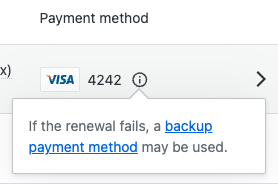
    Looks like I missed a notice when rendering the payment method. In the original PurchaseItem component, not only does the payment method type render, but also a notification about if there is a backup payment method.

    Production

    WIP DataViews

    While I was working on the CSS for the DataViews table, I realized that the notice was missing. Exporting the function for the notice and adding it to the payment-methods column wasn’t a problem. However, determining if the component should be rendered threw me a curveball.

    The parameter that determines if the component should be rendered is a const isBackupMethodAvailable. However, the value of this const isn’t available within the Purchases.Purchase type. It is actually set and passed to the PurchaseItem component one step higher in the chain, within the PurchasesSite component.

    { purchases.map( ( purchase ) => {
    	const isBackupMethodAvailable = cards.some(
    		( card ) => card.stored_details_id !== purchase.payment.storedDetailsId && card.is_backup
    	);
    
    	return (
    		<PurchaseItem
    			{... A Bunch of Props...}
    			isBackupMethodAvailable={ isBackupMethodAvailable }
    		/>
    	);
    } ) }
    

    At face value, this isn’t a hard fix. I could copy this logic setting isBackupMethodAvailable over to the PurchaseItemRowPaymentMethod component within the DateViews fields. This would allow me to check the two conditions for showing the notice:

    • Is the current payment method different from the one being used for the purchase?
      • We need the current payment method to be different from the payment method assigned to the purchase. If it isn’t, then the payment method isn’t really a back up–its just the payment method assigned to the purchase. Even if the current payment method is marked to be used as a backup for other purchases, if there isn’t a secondary backup payment method available, then this purchase doesn’t have a backup available.
    • Is the card set to be used as a backup payment method?

    If these two conditions are true, then there is a valid backup payment method and the notice is shown.

    The tricky part is when you start thinking about performance and scale. If a user only has a few purchases and one or two payment methods, then copying this logic over may not be a big issue and the user likely won’t see any drag.

    However, if the user has hundreds of purchases and lots of payment methods, this could cause a problem. The DataFields API renders one item at a time. Currently, the payment-method field uses the purchase as the item to render. Since this type doesn’t include the backup payment method information, I can’t just pass it in. So the approach of just copying and pasting this logic over would mean that for every row of the DataViews table, I would need to fetch all of the customer’s payment methods, filter through them to see if there are payment methods which are a backup but not assigned to the purchase, and then repeat it again in the next row.

    See how that could get expensive really quickly?

    To avoid this performance drain, I have two other options:

    1. Shove the isBackupMethodAvailable const into the Purchases.Purchase type
    2. Fetch the array of payment methods only once and pass it to getPurchasesFieldDefinitions via the usePurchasesFieldDefinitions hook

    I don’t love adding a parameter to a type for a single use case. So I am going with option 2.

    The first step is to pass the array of payment methods (StoredPaymentMethod) to the hook from the purchases list index file. This is the closest place where we have this context already available.

    // purchases-list-in-dataviews/index.tsx
    
    <PurchasesDataViews
    	purchases={ purchases }
    	translate={ translate }
    	paymentMethods={ this.props.paymentMethodsState.paymentMethods }
    />
    

    We then pass the data from the DataView, to the usePurchasesFieldDefinitions hook, and then finally to the getPurchasesFieldDefinitions function.

    // purchases-data-view.tsx
    
    export function PurchasesDataViews( props: {
    	purchases: Purchases.Purchase[];
    	translate: LocalizeProps[ 'translate' ];
    	paymentMethods?: <Array>StoredPaymentMethod;
    } ) {
    	// ...Other logic...
    	const purchasesDataFields = usePurchasesFieldDefinitions( paymentMethods );
    	// ...More logic...
    }
    
    // use-field-definitions.ts
    
    export function usePurchasesFieldDefinitions( paymentMethods) {
    	// Do some stuff with the payment methods
    	// Other hook logic
    }
    

    Now, remember, there are two conditions for a purchase to be considered as “having a backup payment method”. The first is that the id of the StoredPaymentMethod for the purchase cannot match the backup method, and the second is that the StoredPaymentMethod has to be set to be a backup.

    Let’s flip the order in which those items are checked. This way, we can send only the StoredPaymentMethods which are a backup to getPurchasesFieldDefinitions. When each row compares the payment method assigned to that purchase, it will have a smaller scope of payment methods to test against since we have already weeded out any payment methods which aren’t meant to be used as a backup.

    const backupPaymentMethods = paymentMethods.filter(
    	( paymentMethod ) => paymentMethod.is_backup === true
    );
    

    Once we pass that back to getPurchasesFieldDefinitions, we can now render the backup payment method notice by checking if the current purchase’s payment method is the only payment method found in the backupPaymentMethods array.

    let isBackupMethodAvailable = false;
    
    if ( backupPaymentMethods ) {
    	backupPaymentMethods.filter(
    		( paymentMethod ) => item.payment.storedDetailsId !== paymentMethod.stored_details_id
    	);
    
    	isBackupMethodAvailable = backupPaymentMethods.length >= 1;
    }
    

    Now, we have checked for both conditions and saved ourselves from having to fetch a set of payment methods multiple times.

    Thoughts? Comments? Concerns? Have a better way to address the problem? Let me know in the comments.

    If you want to see the full work in progress, check out the PR here: https://github.com/Automattic/wp-calypso/pull/102742