Tag: DataViews

  • Shipped: A new subscription management experience on WordPress.com

    Last week, a new subscription management experience was shipped to WordPress.com users.
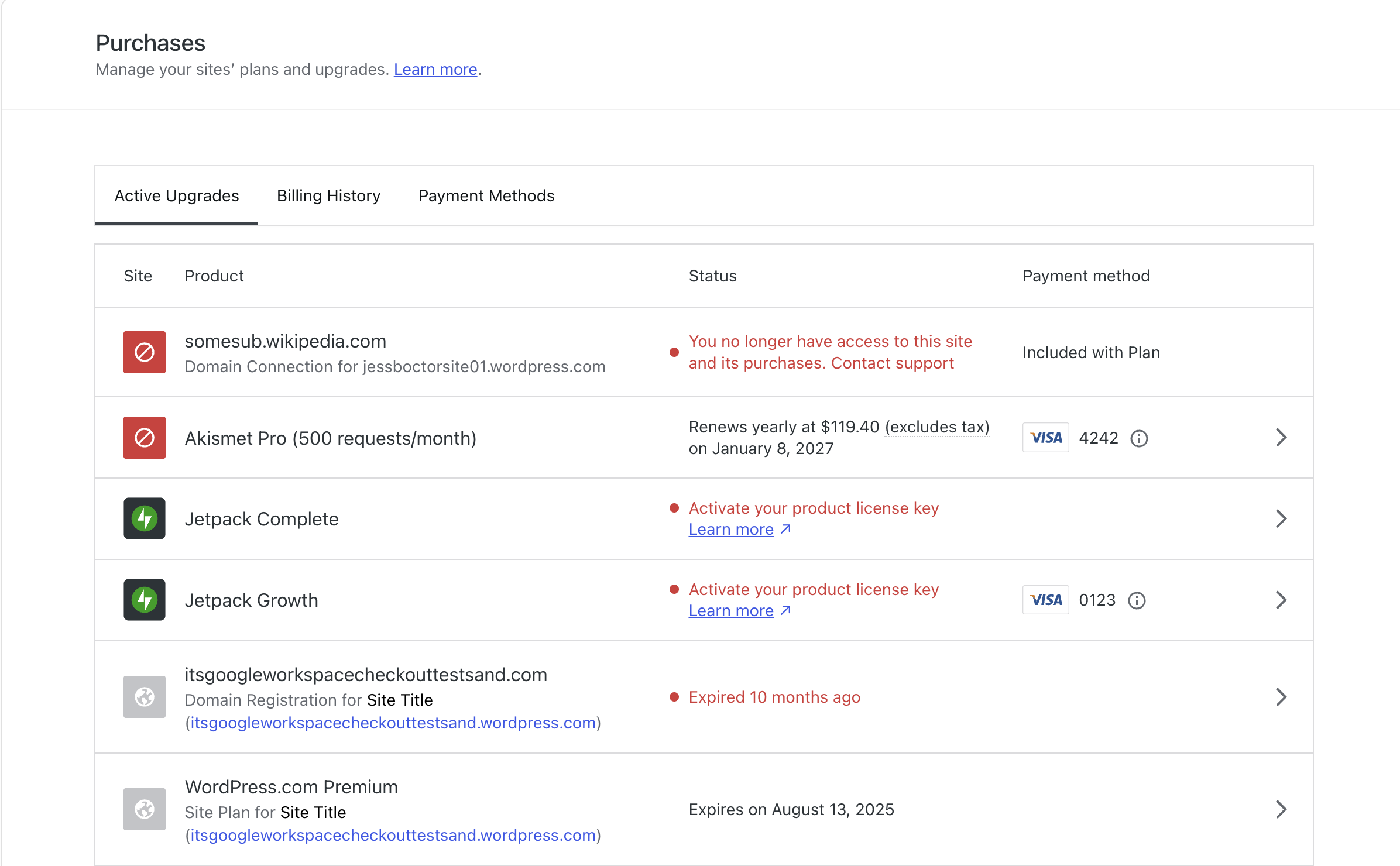
    Before*
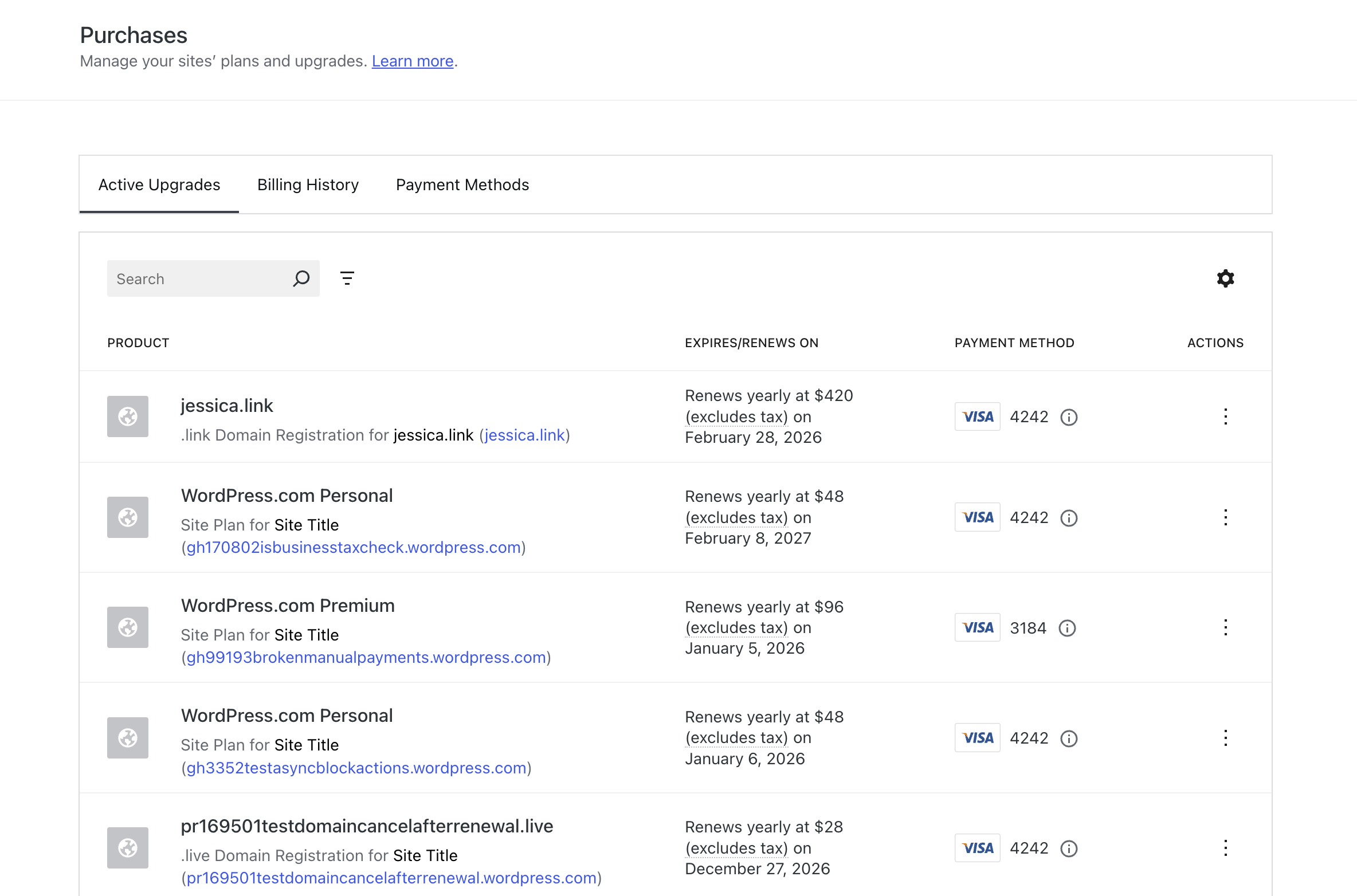
    After*

    The best part? The users probably didn’t even notice (yet) 🎉

    The problem

    As a WordPress.com user, understanding where to find a particular subscription was a bit of a headache. There were previously two options.

    1. Go to My WordPress.com Account > Purchases and scroll through a list of all purchases on the account. This includes WordPress.com, Jetpack, Akisment, user-to-user products, certain WooCommerce solutions, Professional Email, and marketplace purchases like plugins and themes. It’s alot.
    2. Go to a specific site home, click on Upgrades > Purchases and then see the list of purchases for just that site. This narrows the field a bit, but also means you have to move in and out of different sites to use this filtered list.

    The feature request & solution

    In 2024, David Rothstein pointed out that the interface of the global purchases list would be improved if it could be easily searched, filtered, and sorted. I took on that challenge with the help of Payton Swick.

    After an initial investigation, we decided that rather than building custom functionality, we would migrate the current layout (which was a faked table) to use the DataViews component built into WordPress Core.

    Project considerations

    The biggest challenge of the project was how to complete that conversion. There were a few key aspects which guided how we defined milestones:

    • The Purchases management screen is used by millions of paying WordPress.com users. We couldn’t simply take down the original version and replace it with an “excuse our dust” page while we completed the changeover
    • We didn’t want to redesign the page. The goal here was to add functionality, not move the user’s cheese and break years of muscle memory for paying customers.
    • The previous Active upgrades line items were generated by a class component called PurchaseItem. While it appeared as though there were four distinct sections (Status, Product, Status, and Payment method) these were all tied up into a single class component and couldn’t be accessed individually.

    The process

    In order to prevent breaking current functionality, I copied over the previous purchases-list directory into a new version called purchases-list-in-dataviews. Then I created a feature flag, purchases/purchase-list-dataview. This allowed the work to be done behind the scenes and shown only in certain environments.

    The next phase was to get the PurchaseItem component to render within the DataViews table. I started out by rendering a table layout that contained the PurchaseItem component as a single column. Once that was done, I started to break the PurchaseItem class into individual functional components which could each be rendered into individual columns.

    1. Sites
    2. Product
    3. Status
    4. Payment method

    While it would be great to say it only took five PRs to get this to happen, we all know development doesn’t work that way 😅. There were a few hiccups, including a dive into how to render backup payment methods and deciding how to display user-to-user (Membership) purchases.

    The good news is that the project kept moving forward. Which got us to the point where we could start to implement the fun part: searching, sorting, and filtering.

    Search

    There is now a functional search box which can be used to search for a number of data points. This includes the site name, the product type, the service, or the payment method.

    Filter

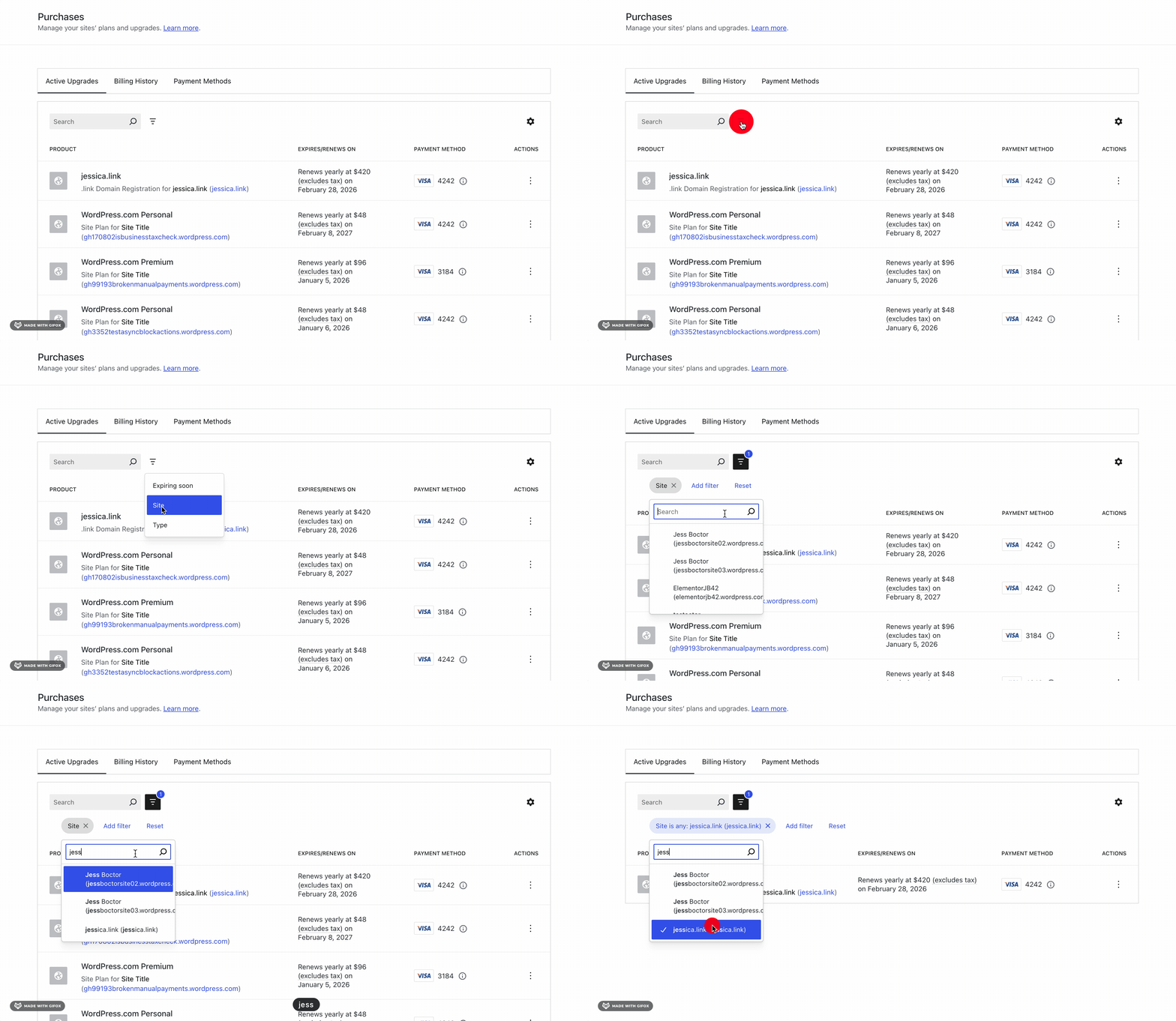
    By clicking on the tornado looking icon, there are three filters available to the user. This includes the Site, Type, and Expiring soon status.
    Sort

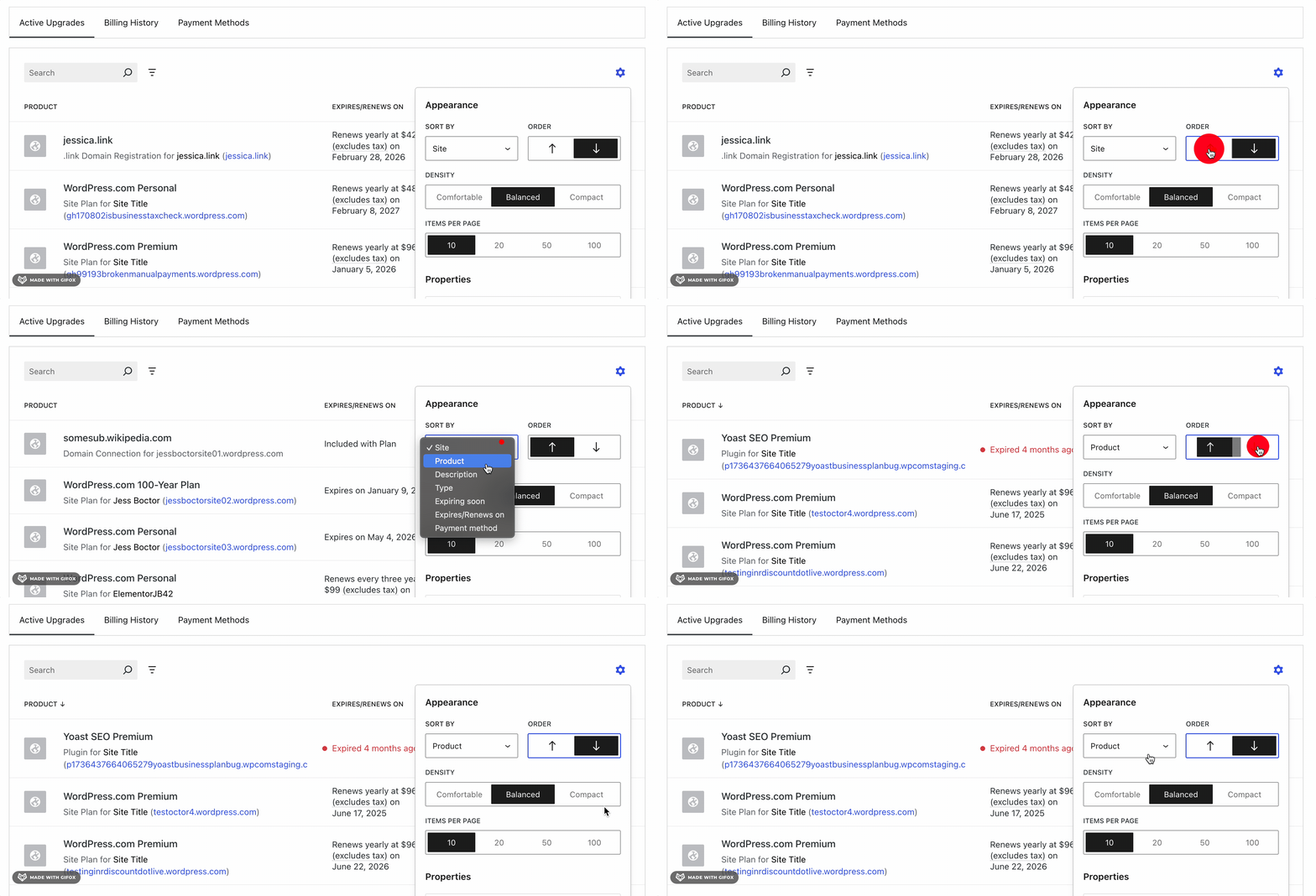
    The sort feature can be found within the table settings gear icon. The user can choose which data point to sort by and if they want to sort in ascending or descending order.
    What’s next?

    I hope users begin to discover the newest features and are delighted by the results.

    There are also improvements to be made to the API so that the filtering can be done server-side for performance reasons. There is opportunity for a bit a clean up, such as deprecating the old PurchasesSite component. These are things which the payments teams at Automattic can prioritize.

    As for me, I am open to new roles and projects. If you have a legacy code base in need of refactoring to improve your user experience, please feel free to reach out!

    Go back

    Thanks for reaching out! I'll be in touch soon!

    Warning
    Warning
    Warning
    Warning.

    * Before you get excited about seeing credit card numbers, these are all Stripe test card numbers.

  • Making a SCUD Plugin

    I am working with a company who needs a nicely formatted way to display a group of employees. Currently, the team page is using hardcoded [author] shortcodes to format the page, but this makes it a pain for the staff to update the team information.

    So they don’t.

    So, I am creating a Simple Custom User Display, or SCUD, plugin.

    Did you think I was talking about missiles? Also, did you know there is a type of baby shrimp called a scud? You can learn about them here.

    I am sure there are already WordPress plugins which have a similar functionality to display users in a page archive. However, in this case, the company that I am working with doesn’t need a bunch of bells and whistles. Since they don’t have someone who regularly handles updating the site, keeping things light and less likely to run into update conflicts would be best.

    Also, I haven’t built a plugin from scratch in a bit. The majority of my recent work has been in digging through legacy code and surgically making improvements and refactors. Building something new seems like fun.

    Before I started writing any code, I spent some time thinking through the plugin and what this company needed. I thought it might be an interesting exercise to share.

    Problem Statement:

    The “Company” needs to improve their current “Team” page. Currently, it is out of date and is not easily updated by the staff at the Company. The current page is making use of the [author] shortcode in order to format contact information which is hard coded into the page directly. The metadata for each team member is not being pulled from a custom post type or user profile. This means that in order to edit a single piece of information (e.g. update a team member title), the user must sort through the page code to make changes.

    Solution:

    Create a lightweight plugin which uses as much core WordPress functionality as possible to make each team member information its own dataset. This way, the team member information can be easily pulled, sorted, filtered, and displayed on the front end. To make this easily editable in the future, utilize WordPress users to contain the sales rep information and metadata.

    Information store: Users

    The current website displays the team members grouped by their team and state. We can maintain this information if we can create a taxonomy for users. This looks to be a simple case of registering a custom taxonomy on the user type

    After creating the taxonomies, we want to limit the capabilities of the team member users. We can do this by creating a custom user role “Team Member” and limiting what they have access to. The role needs to only be added during the activation hook of our plugin and then we can begin to assign users to the role.

    The last piece of information we need to include is custom user meta fields. The team members have extra information, like their title and regions, which we need to be able to save. We can include this in the edit_user_profile hook

    The end goal here is that any team member could log in to edit their own profile information. If they don’t have their login, an administrator would also be able to update the contact information for them.

    Display

    Option 1: DataViews (Stretch)

    WordPress has recently introduced DataViews to core. This allows data sets (such as users) to not only be displayed, but also searched, filtered, and sorted. 

    DataViews has multiple layout options, including a table, grid, or list. Since the DataViews fields each render the component in custom React, we can customize the layout of the user information and how it is displayed.

    Additionally, since not all “fields” have to be displayed to be used for filtering, we can use the taxonomies to filter the users.

    The goal here is to allow users to be added to the website and then be automatically added to the Sales Team page without needing to edit the page content itself.

    If we contained the DataViews within a Block (for Divi or Gutenberg) then we would also be able to add custom content above or below the block without having to touch code.

    Divi can now display Gutenberg blocks. So this means we only need to create the block as part of Gutenberg.

    Option 2: Page Template

    This is basically the same principle as option 1, but with a custom page template. This is less flexible and doesn’t allow for searching, sorting, or filtering.

    Option 3: Divi Drag and Drop Page

    This option would be the most similar to the current implementation (the layout being created within the page editor). While we would still have the benefits of better user information control, it wouldn’t solve the long term-ease of use problem. It would likely be the least time consuming though.

    I am developing a boiler plate version of this plugin here: https://github.com/JessBoctor/simple-custom-user-display

    The goal is not to create a WYSIWYG plugin which allows a user to install and customize the new user role and display. Rather, it is a lightweight plugin with enough instructions on how to customize things that a dev can pick it up and make it their own.

    Which is what I will do for the company I am working with 🙂

    PS Before and after images will be coming soon once I have the website refresh completed.

  • Calling for Backup

    I am currently working on a project to convert a list of active purchases from a custom React component to a built in WordPress component, DataViews. The goal of the project is to utilize the built in sorting, filtering, and pagination of DataViews to improve the user experience by making finding specific subscriptions in their account.

    GitHub Issue: https://github.com/Automattic/wp-calypso/issues/86616

    A big part of this project has been detangling functionality from class components so that the logic could be exported from the original PurchaseItem component to render within the columns of the DataViews table. I went through this process for each of the four columns in these PRs:

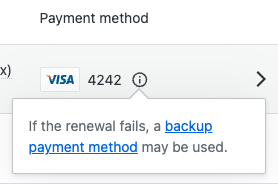
    Looks like I missed a notice when rendering the payment method. In the original PurchaseItem component, not only does the payment method type render, but also a notification about if there is a backup payment method.

    Production

    WIP DataViews

    While I was working on the CSS for the DataViews table, I realized that the notice was missing. Exporting the function for the notice and adding it to the payment-methods column wasn’t a problem. However, determining if the component should be rendered threw me a curveball.

    The parameter that determines if the component should be rendered is a const isBackupMethodAvailable. However, the value of this const isn’t available within the Purchases.Purchase type. It is actually set and passed to the PurchaseItem component one step higher in the chain, within the PurchasesSite component.

    { purchases.map( ( purchase ) => {
    	const isBackupMethodAvailable = cards.some(
    		( card ) => card.stored_details_id !== purchase.payment.storedDetailsId && card.is_backup
    	);
    
    	return (
    		<PurchaseItem
    			{... A Bunch of Props...}
    			isBackupMethodAvailable={ isBackupMethodAvailable }
    		/>
    	);
    } ) }
    

    At face value, this isn’t a hard fix. I could copy this logic setting isBackupMethodAvailable over to the PurchaseItemRowPaymentMethod component within the DateViews fields. This would allow me to check the two conditions for showing the notice:

    • Is the current payment method different from the one being used for the purchase?
      • We need the current payment method to be different from the payment method assigned to the purchase. If it isn’t, then the payment method isn’t really a back up–its just the payment method assigned to the purchase. Even if the current payment method is marked to be used as a backup for other purchases, if there isn’t a secondary backup payment method available, then this purchase doesn’t have a backup available.
    • Is the card set to be used as a backup payment method?

    If these two conditions are true, then there is a valid backup payment method and the notice is shown.

    The tricky part is when you start thinking about performance and scale. If a user only has a few purchases and one or two payment methods, then copying this logic over may not be a big issue and the user likely won’t see any drag.

    However, if the user has hundreds of purchases and lots of payment methods, this could cause a problem. The DataFields API renders one item at a time. Currently, the payment-method field uses the purchase as the item to render. Since this type doesn’t include the backup payment method information, I can’t just pass it in. So the approach of just copying and pasting this logic over would mean that for every row of the DataViews table, I would need to fetch all of the customer’s payment methods, filter through them to see if there are payment methods which are a backup but not assigned to the purchase, and then repeat it again in the next row.

    See how that could get expensive really quickly?

    To avoid this performance drain, I have two other options:

    1. Shove the isBackupMethodAvailable const into the Purchases.Purchase type
    2. Fetch the array of payment methods only once and pass it to getPurchasesFieldDefinitions via the usePurchasesFieldDefinitions hook

    I don’t love adding a parameter to a type for a single use case. So I am going with option 2.

    The first step is to pass the array of payment methods (StoredPaymentMethod) to the hook from the purchases list index file. This is the closest place where we have this context already available.

    // purchases-list-in-dataviews/index.tsx
    
    <PurchasesDataViews
    	purchases={ purchases }
    	translate={ translate }
    	paymentMethods={ this.props.paymentMethodsState.paymentMethods }
    />
    

    We then pass the data from the DataView, to the usePurchasesFieldDefinitions hook, and then finally to the getPurchasesFieldDefinitions function.

    // purchases-data-view.tsx
    
    export function PurchasesDataViews( props: {
    	purchases: Purchases.Purchase[];
    	translate: LocalizeProps[ 'translate' ];
    	paymentMethods?: <Array>StoredPaymentMethod;
    } ) {
    	// ...Other logic...
    	const purchasesDataFields = usePurchasesFieldDefinitions( paymentMethods );
    	// ...More logic...
    }
    
    // use-field-definitions.ts
    
    export function usePurchasesFieldDefinitions( paymentMethods) {
    	// Do some stuff with the payment methods
    	// Other hook logic
    }
    

    Now, remember, there are two conditions for a purchase to be considered as “having a backup payment method”. The first is that the id of the StoredPaymentMethod for the purchase cannot match the backup method, and the second is that the StoredPaymentMethod has to be set to be a backup.

    Let’s flip the order in which those items are checked. This way, we can send only the StoredPaymentMethods which are a backup to getPurchasesFieldDefinitions. When each row compares the payment method assigned to that purchase, it will have a smaller scope of payment methods to test against since we have already weeded out any payment methods which aren’t meant to be used as a backup.

    const backupPaymentMethods = paymentMethods.filter(
    	( paymentMethod ) => paymentMethod.is_backup === true
    );
    

    Once we pass that back to getPurchasesFieldDefinitions, we can now render the backup payment method notice by checking if the current purchase’s payment method is the only payment method found in the backupPaymentMethods array.

    let isBackupMethodAvailable = false;
    
    if ( backupPaymentMethods ) {
    	backupPaymentMethods.filter(
    		( paymentMethod ) => item.payment.storedDetailsId !== paymentMethod.stored_details_id
    	);
    
    	isBackupMethodAvailable = backupPaymentMethods.length >= 1;
    }
    

    Now, we have checked for both conditions and saved ourselves from having to fetch a set of payment methods multiple times.

    Thoughts? Comments? Concerns? Have a better way to address the problem? Let me know in the comments.

    If you want to see the full work in progress, check out the PR here: https://github.com/Automattic/wp-calypso/pull/102742