Tag: digital

  • #Livescribe in Wonderland

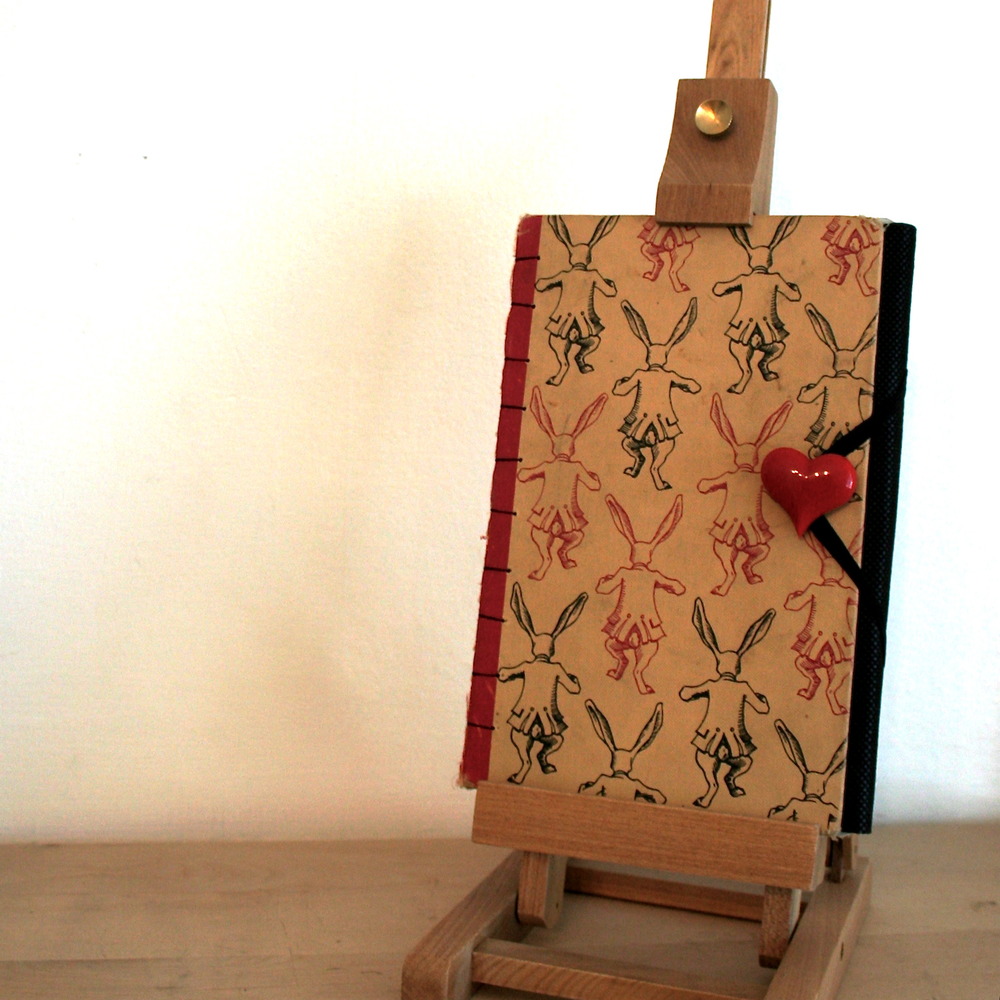
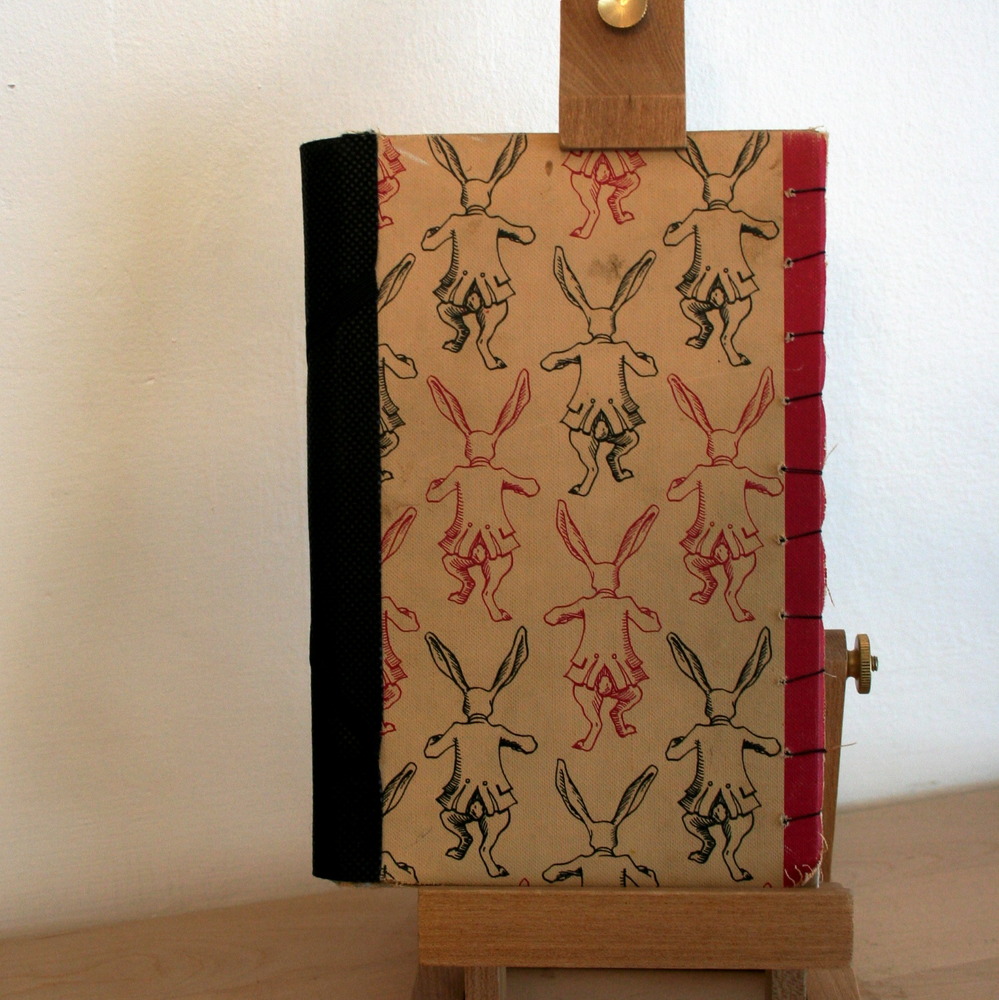
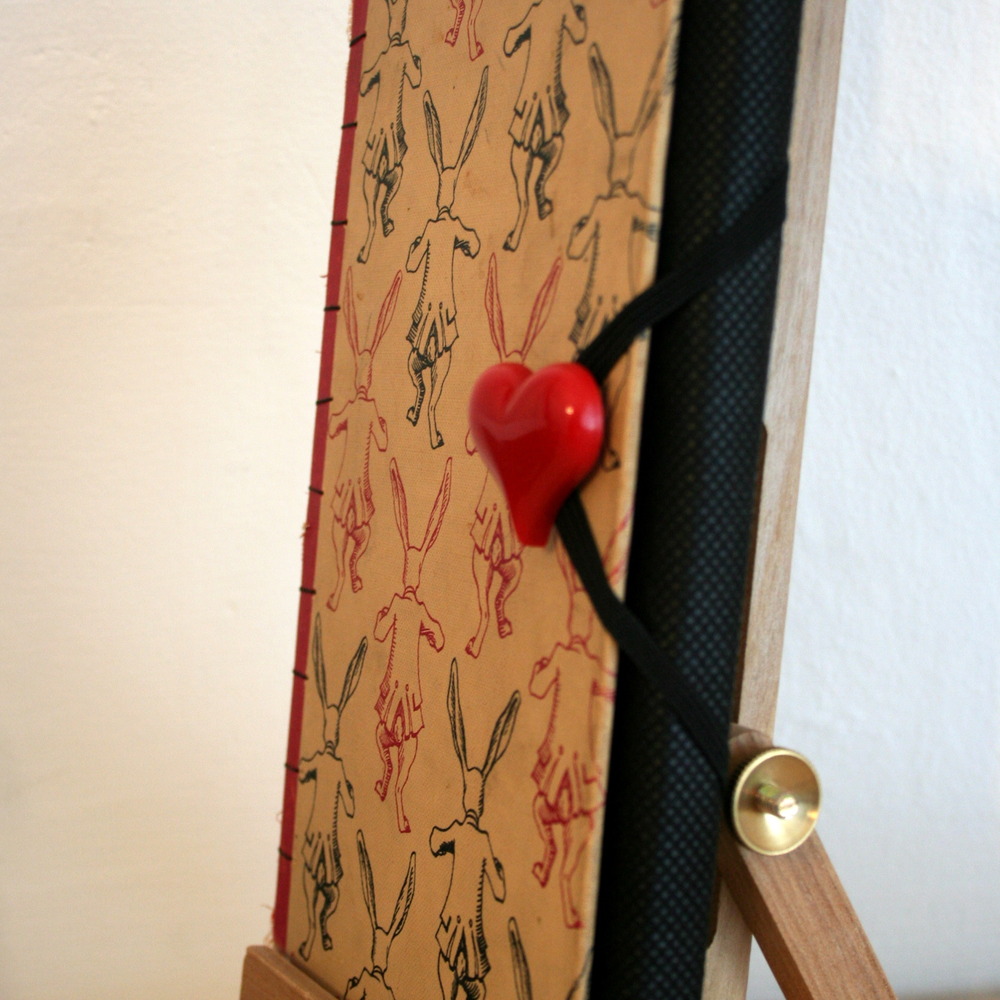
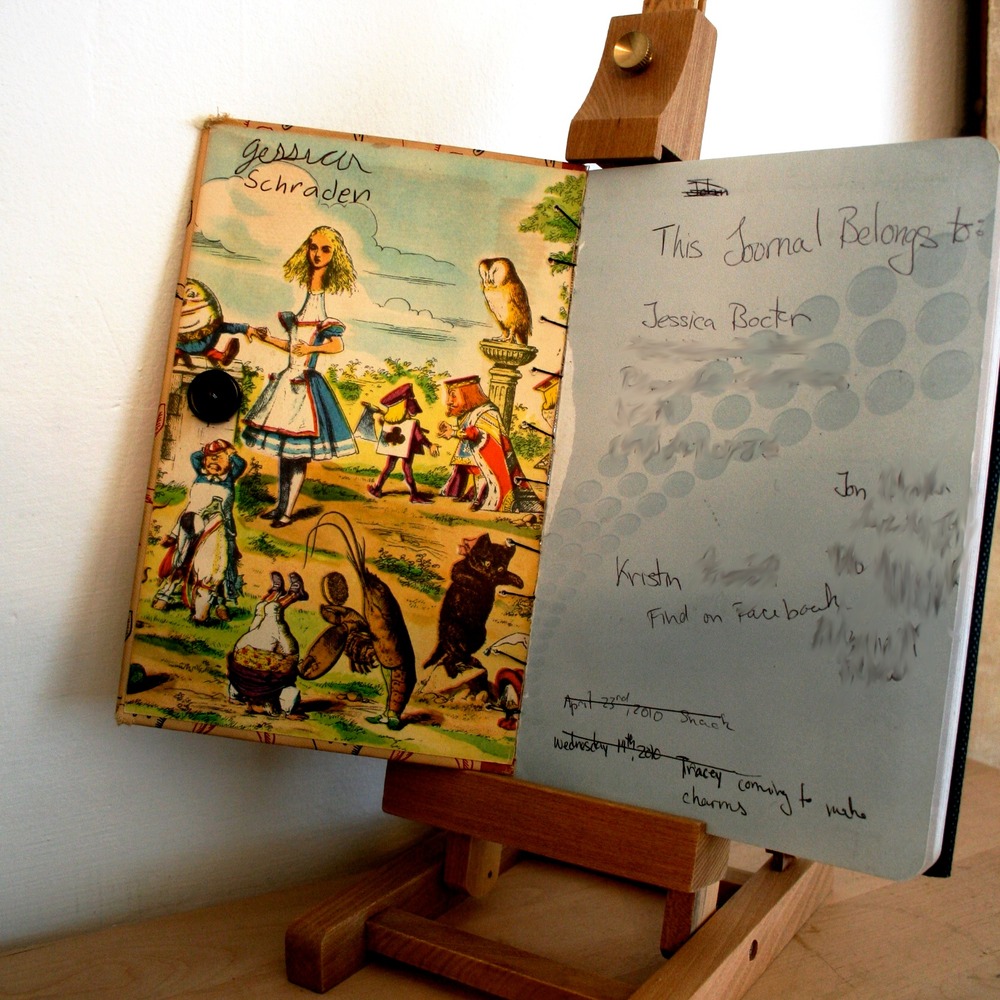
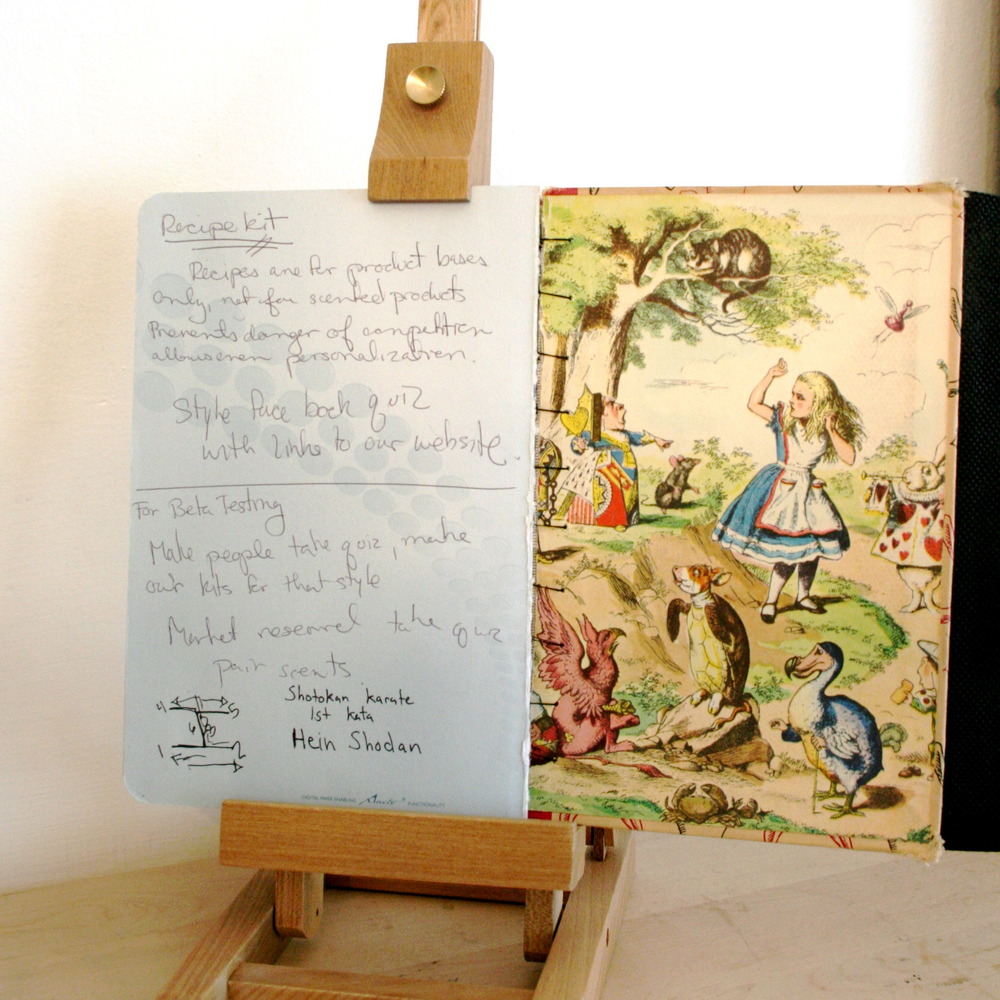
    This is my latest Livescribe creation. I took my own journal and re covered it with this vintage cover from Lewis Carrolls Alice in Wonderland. I love the exterior with the white rabbits, and on the interior covers are illustrations from the story. You can see on the inside of the front cover where I wrote my name in the book in second grade when the Lady first bought it for me.

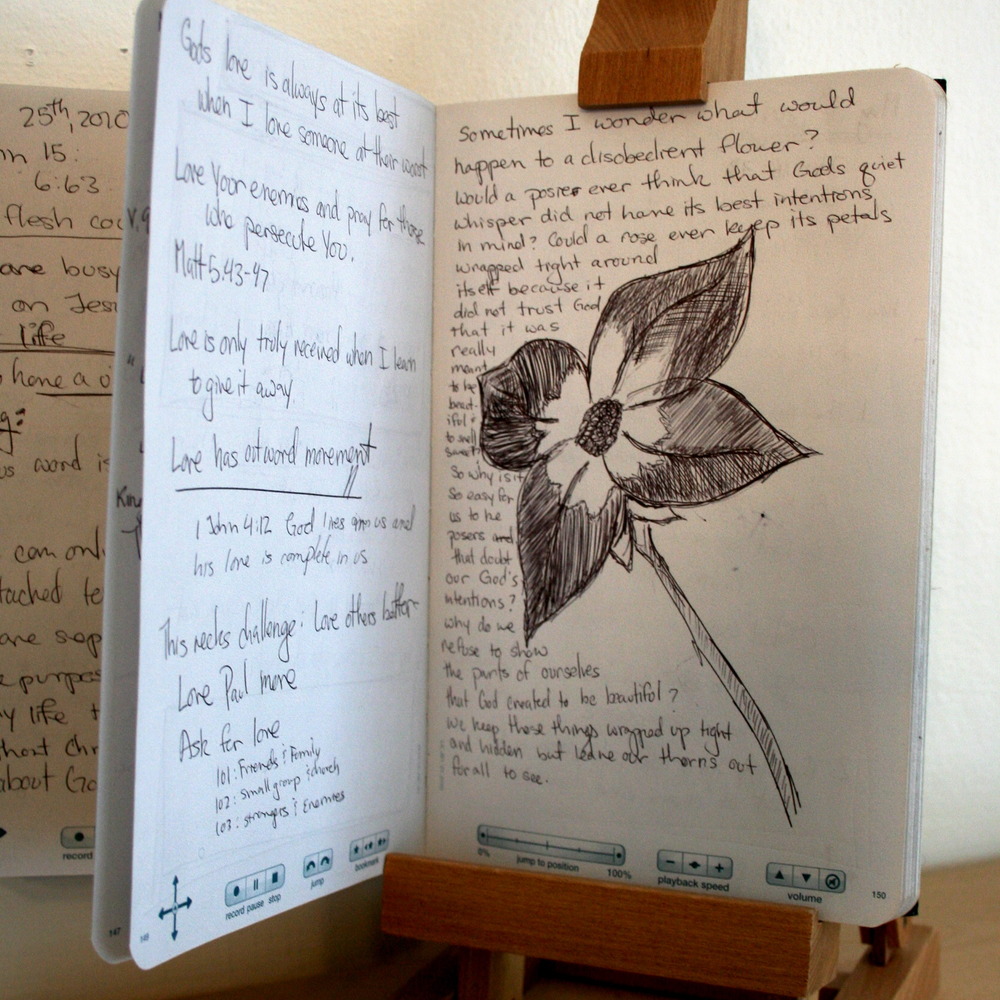
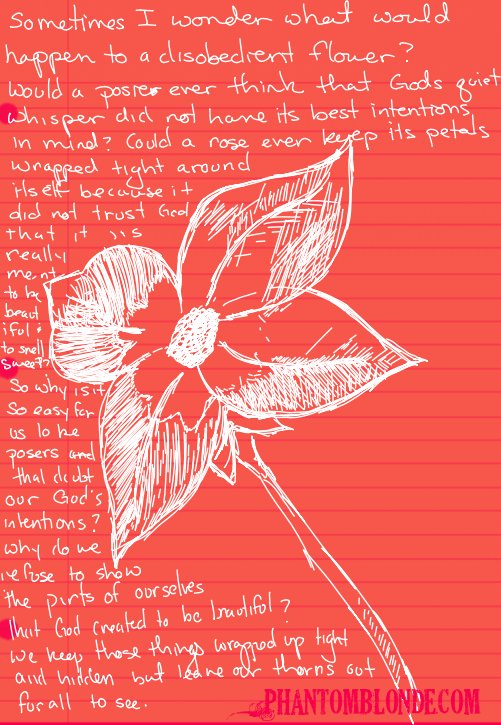
    I also came across one of my own illustrations in the journal while I was rebinding it. I decided to give it a little extra punch, so I made a pdf of the image from my Livescribe desktop application and then used Gimp Shop to add some extra touches. I like how the white writing really pops against the pink background. 

    Also, if you want to get a Livescribe pen of your own, I found a coupon for you!:

    Save 5% on your entire order. Use coupon code LIVESCRIBE5OFF

    Media_httpwwwawltovhc_cotdb

    If you would like one of my dot paper creations for yourself, I make them special to order.

    $32.99 – 5.8″ x 8.3″ Lined Notebook $34.99 – 8.5″ x 11″ Lined Notebook 2 $44.99 – 5.5″ x 8.25″ Unlined Notebook 3
    Continuing the adventure, 

    Jess

    Img_9154Img_9155Img_9162Img_9165Img_9158Img_9161Img_9160Journalflower2

  • Using Your @Livescribe pen with Gimp Shop

    There are many amazing things you can do with a Livescribe pen, and while I believe it is playing a revolutionary role in the business and education world, I think we have yet to scratch the surface of what this pen will allow artists to do in the future. 

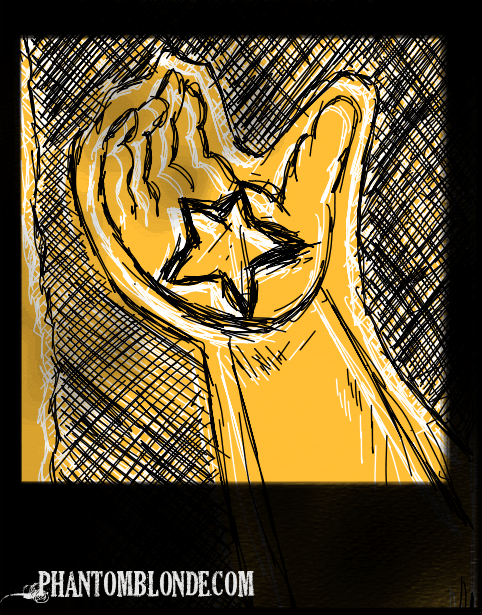
    I am, by no means, a skilled graphic artist or a sketch artist for that matter. I was simply excited the Pulse pen lets me have instant digital copies of my doodles from my journals. However, I can see the possibilities. Especially when it only takes a few simple steps you to import any of your livescribe sketches into a photo editor, allowing you to mix graphic and hand made art.
    Picture_2Picture_3Picture_4Picture_5Hands
    Here is all you have to do: 

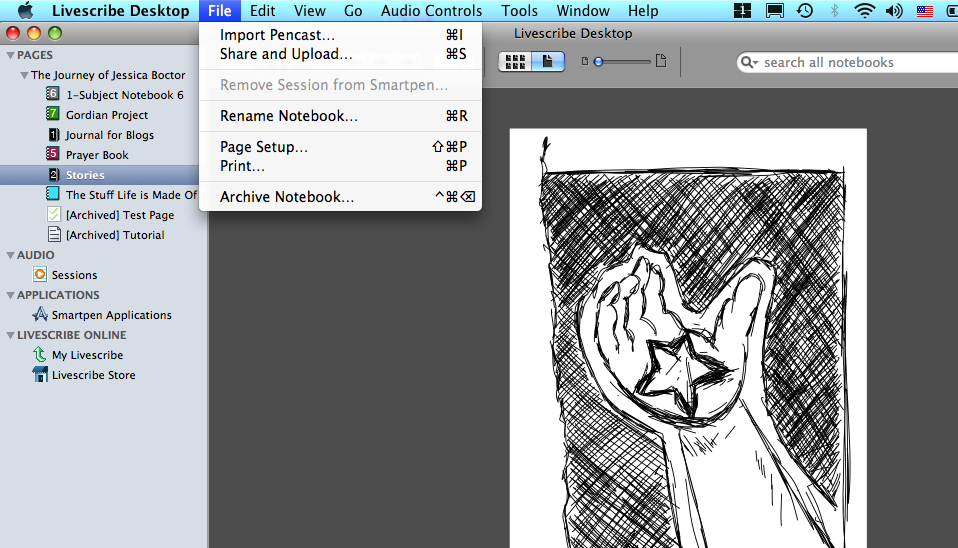
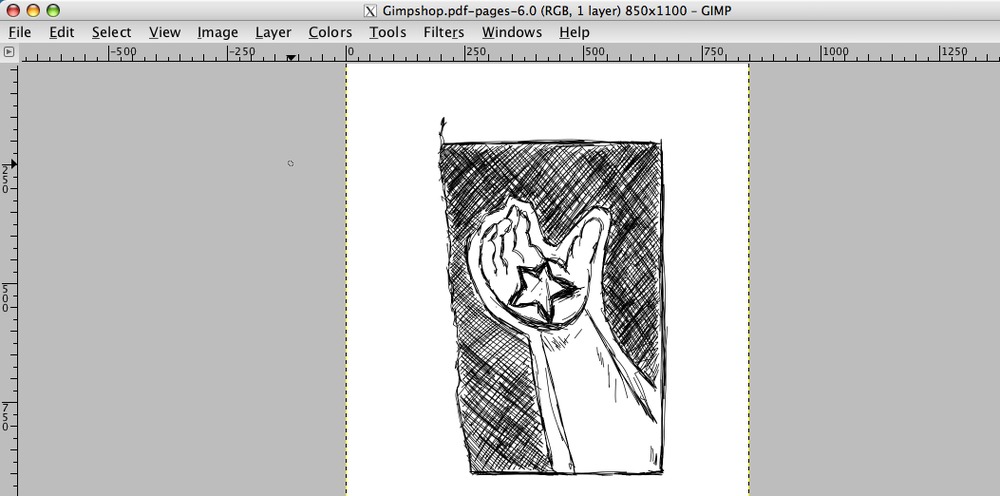
    1. Open your livescribe desktop application and find the page with the image which you wish to alter.
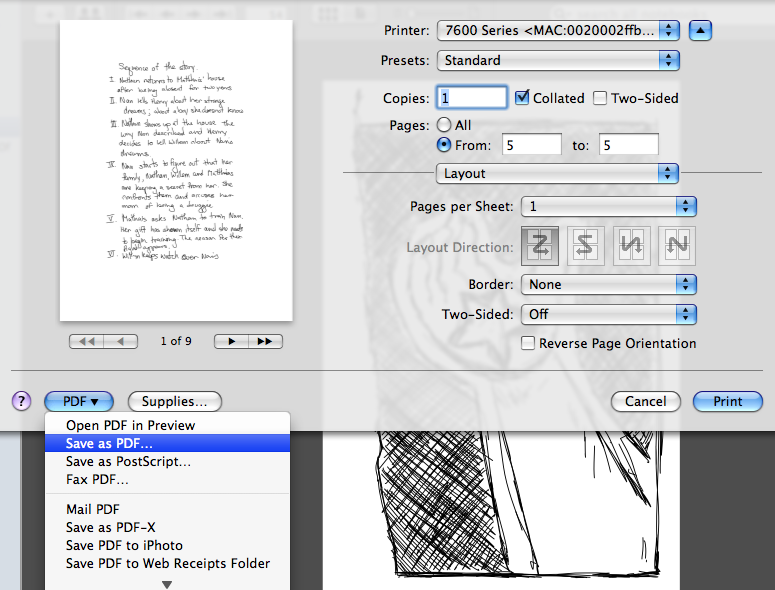
    2. From the file menu, click ‘Print’, and then select ‘Save as PDF’ (PC Users, your process for saving a PDF may be slightly different)
    3. Open your Gimp application
    4. Click on ‘Open’ Select your pdf file and the image should appear ready to be altered to your hearts content.
    Continuing the adventure, 

    Jess
    PS: Have you heard the rumors? They are working to make the echo a digital pen which will interface directly with your photo editor. Check it out.