

I have a client who has created a really neat app via Lovable. They needed help moving from what they have to launch.
One of the first concerns I had was how to set up a development environment for the project outside of Lovable.
tl;dr Creating a local environment for a Lovable app required cloning the GitHub repo and then setting up a local Supabase install by seeding data from the remote database.
Note: This tutorial is for Lovable projects which already have Supabase and GitHub integrated with the app. If your Lovable project isn’t there yet, here is the documentation for integrating Supabase and GitHub.
Tutorial Contents
Before you get started
There were a few gotchas which I ran into. I deal with them throughout the tutorial, so you can skip ahead if you like. If you want a heads up of what to watch out for, continue here.
Self-hosted via Docker VS Supabase CLI
This feels a bit like the struggle of self-hosted WordPress vs WordPress.com. Like WordPress, Supabase is both an OpenSource project which can be hosted on your servers via Docker. It is also an enterprise hosting service which will host the databases for you. The important distinction for our tutorial is that in order to work on a Supabase project locally, you do need to have Docker Desktop installed and configured to work but you do not need to go through the trouble of setting up the Docker environment. It will send you down a rabbit trail. Rather, install the Supabase CLI and initialize the project from there, as described in Steps 3-5.
The Remote Database Password is Required during First Connections
This may seem like a “well-duh”, but I tried my hardest to work around it. Mostly because my client wasn’t sure what the password was and I didn’t want to force them into resetting the password, as I wasn’t sure how that would affect the Lovable app. This password isn’t tied to a user account, but the database itself. I tried just downloading a copy of the back up, and then restoring it locally, but that turned out to be its own headache. The native tools built into the Supabase CLI make accessing the remote database much quicker if you have the password. My client and I ended up resetting the password. Luckily, changing the password didn’t seem to have an effect on the Lovable app and I didn’t have to hunt around for places where the password was used.
Step 1: Install Supabase CLI
If you already have Supabase CLI installed, then you can skip ahead.
If not, the documentation for installing the CLI can be found here: https://supabase.com/docs/guides/local-development/cli/getting-started
Click on the environment you are using to install the CLI and it will provide the instructions.

In my case (macOS), I used Homebrew via command line in Terminal.
brew install supabase/tap/supabase
Step 2: Clone the Lovable GitHub repo
$ git clone <Your Repo URL>
Step 3: Initialize Local Supabase
Access the folder where you cloned the Lovable project from GitHub. There should already be a supabase directory. It may contain sub-directories like functions and migrations.
% cd <Your Repo Name>
You probably don’t want to commit any of the local configuration files to the repo which you share with Lovable. Add the following items to your .gitignore file:
# Ignore Supabase local Development files
supabase/seed.sql
supabase/.branches/
supabase/.temp/
supabase/functions/.env
supabase/config.toml
Important: Make sure to save and commit the change to the .gitignore file before running supabase init. This way, Git won’t be trying to track the files Supabase will create.
Next, run the Supabase initialization:
<Your Repo Name>% supabase init
Step 4: Login, & Link to the Remote Project
Now that a local Supabase project has been initialized, the database can be connected to your remote project.
To log into your Supabase account where the remote project is:
<Your Repo Name>% supabase login
The response will be a link to open in a browser.
Hello from Supabase! Press Enter to open browser and login automatically.

Here is your login link in case browser did not open https://supabase.com/dashboard/cli/login?session_id={...}
The link will either prompt you to log in to your Supabase account or immediately redirect you to the authorization page. Once logged in, the authorization page will show a verification code. Copy this into your terminal.
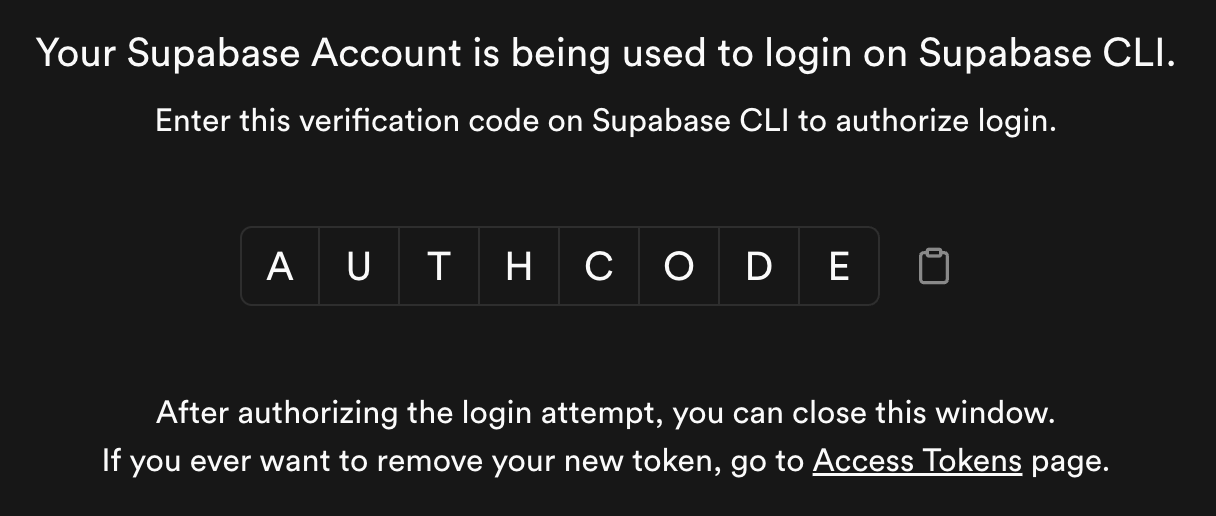
Enter your verification code: {AUTHCODE}

Token cli_jessboctor@{machinename}.local_{...} created successfully.

You are now logged in. Happy coding!
Once you have logged in, you can link the local instance to a remote project:
<Your Repo Name>% supabase link
The response will be a list of the projects in your remote Supabase workspace. Use the ⬆️ and ⬇️ keys to highlight the project you want and press enter.
Here, you may be asked for the database password for this project. This is not your user account password. You should have set the password when you created the Supabase project. If the password if valid, the supabase/config.toml file will be updated to reflect the project which you linked to.
Step 5: Seed & Start the Database
In order to set up with pre-populated data, you need to download a seed file from Supabase.
<Your Repo Name>% supabase db dump --data-only > supabase/seed.sql
This command will download a seed SQL file to your-repo-name/supabase/seed.sql
To start the database:
<Your Repo Name>% supabase start
Once the servers have started, you should see a list of local URLs and ports which you can use for different things. For example, the “Studio” allows you to access a local version of the Supabase dashboard.
Step 5: Update the environment keys
Now that the local Supabase tables are running, we need to connect the app to the local tables rather than the remote ones.
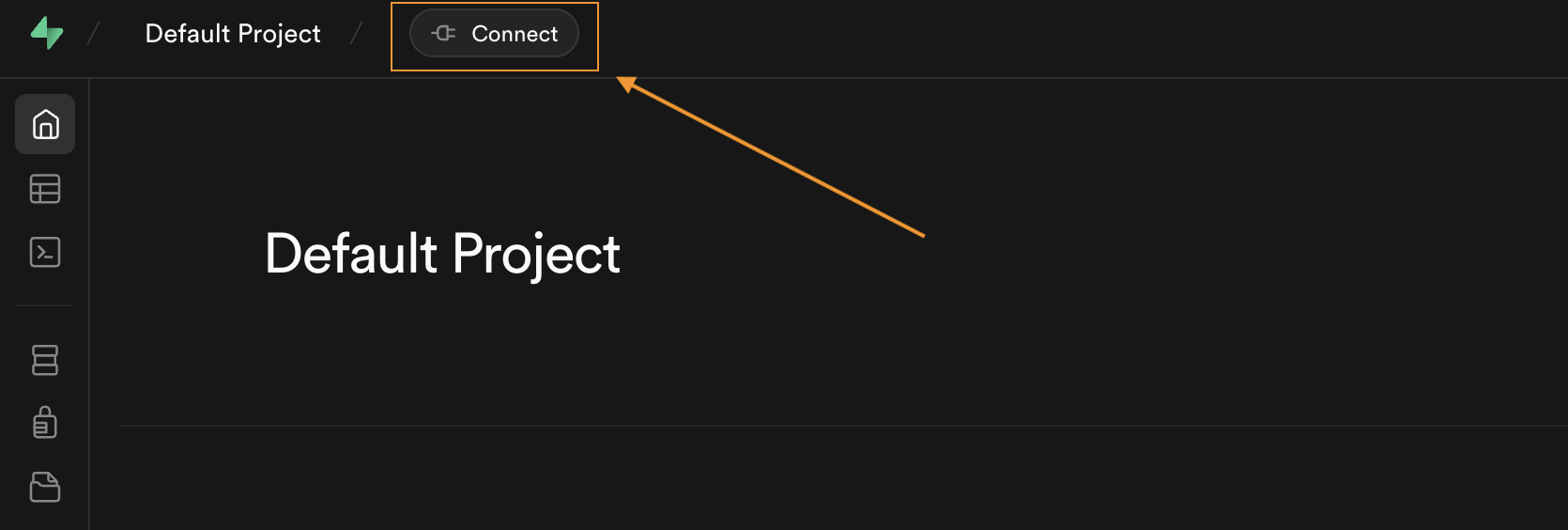
Open the Supabase Studio URL in a browser (it is most likely http://127.0.0.1:54323). When you see the Supabase dashboard, click on the “Connect” button in the upper right-hand corner.
When the connect dialogue opens, click on the “App Frameworks” button. You need to copy the “{…}_Supabase URL” and “{…}_Supabase_Anon_Key” from the dialogue,
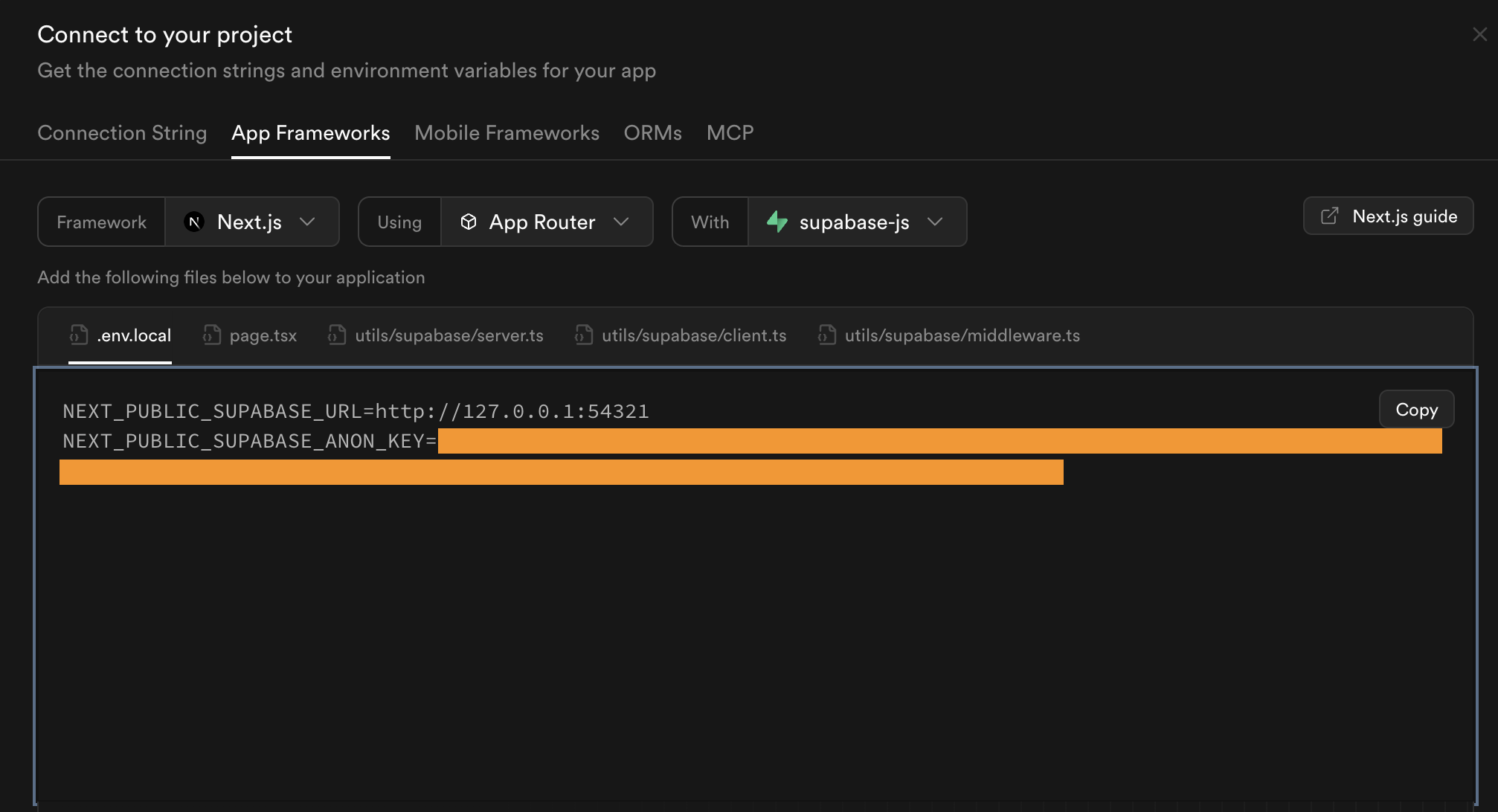
In your code editor, open up the your-repo-name/integrations/supabase/client.ts file. We need to replace the Supabase_URL and Supabase_Publishable_Key values. The file should look like this:
// This file is automatically generated. Do not edit it directly.
import { createClient } from '@supabase/supabase-js';
import type { Database } from './types';

SUPABASE_URL = "<Your Remote Subabase URL>";
SUPABASE_PUBLISHABLE_KEY = "<A really long string>";

// Import the supabase client like this:
// import { supabase } from "@/integrations/supabase/client";

export const supabase = createClient<Database>(SUPABASE_URL, SUPABASE_PUBLISHABLE_KEY);
You will want to replace the values with the ones you copied from the local Supabase Studio Connect:
// This file is automatically generated. Do not edit it directly.
import { createClient } from '@supabase/supabase-js';
import type { Database } from './types';

SUPABASE_URL = "http://127.0.0.1:54321";
SUPABASE_PUBLISHABLE_KEY = "<A really long but different string>";

// Import the supabase client like this:
// import { supabase } from "@/integrations/supabase/client";

export const supabase = createClient<Database>(SUPABASE_URL, SUPABASE_PUBLISHABLE_KEY);
You will also need to either create a .env.local file to replace the values in the .env file, or replace them in the .env file directly.
Step 6: Start the webapp
Conveniently, the README.md file from Lovable should include instructions on how to stand up a local version of the web app which was connected to the remote version of the Supabase project.
# Step 1: Clone the repository using the project's Git URL.
git clone <YOUR_GIT_URL>

# Step 2: Navigate to the project directory.
cd <YOUR_PROJECT_NAME>

# Step 3: Install the necessary dependencies.
npm i

# Step 4: Start the development server with auto-reloading and an instant preview.
npm run dev
Running npm run dev will respond with another local URL (http://localhost:8080/). When you load this URL in a browser, you should see a local version of your Lovable app!
That’s it! You should be ready to go!
Pro-tip: Lovable commits the .env file into the Git repo. However, keeping track of the environment variables is a pain, not to mention, can lead to accidentally committing your local Supabase_URL and Anon_key to the repo (ask me how I know).
Here is the workaround I figured out:
- Remove
.envfrom the git repo usinggit rm --cached .env - Add
.envto your.gitignorefile and commit the change - Edit the
.envfile to contain a environment variable which can be easily set to “true” or “false”: `VITE_IS_LOCAL=”true” - Edit the
integrations/supabase/client.tsfile to set theSUPABASE_URLandSUPABASE_PUBLISHABLE_KEYbased on the environment variable.
// This file is automatically generated. Do not edit it directly.
import { createClient } from '@supabase/supabase-js';
import type { Database } from './types';

let SUPABASE_URL = "";
let SUPABASE_PUBLISHABLE_KEY = "";
const isLocal = import.meta.env.VITE_IS_LOCAL === "true";

if (isLocal) {
    SUPABASE_URL = "http://127.0.0.1:54321";
    SUPABASE_PUBLISHABLE_KEY = "<The long local string>";
} else {
    SUPABASE_URL = "<Remote project URL>";
    SUPABASE_PUBLISHABLE_KEY = "<The long remote string>";
}

// Import the supabase client like this:
// import { supabase } from "@/integrations/supabase/client";

export const supabase = createClient<Database>(SUPABASE_URL, SUPABASE_PUBLISHABLE_KEY);
Deploying Changes
In order to keep the version control continuous between Lovable and Supabase, you need to commit changes to any supabase/migrations and supabase/functions twice. First, via Supabase CLI to push the changes to the remote database and then second in Git to push the changes to Lovable.
You can find information Migrations and deploying changes here: https://supabase.com/docs/guides/deployment/database-migrations
You can find information Edge Functions and deploying changes here: https://supabase.com/docs/guides/functions/quickstart-dashboard
Does this process work for you? Got any great tips on how to make it work even better? Let me know!


 Jess Boctor