Tag: Vibe Coding

  • Crash Course in Technical Support

    AI assisted coding like Claude or Lovable make it easy for anyone to create a web app. This type of enablement means that projects can go from ideas to launch really quickly and for, well, anyone.

    But what happens when you get your first users? Figuring out how to support them can take a while.

    I have more than 10 years of experience in supporting customers to help them figure out how to use SaaS products, or engineers in how to extend them.

    Here’s some tips for anyone who is trying to learn support on the fly:

    Tip #1: Take A Breath

    In support, everything feels urgent. Very few people write to support and say, “I’m having trouble, but get back to me whenever you can!”. Rather, messages are, “Hey! It’s broken! My work is blocked! Fix it! Fix it now!”

    It is easy to let their panic generate panic in you. Taking a deep breath, reading through their message multiple times, and having a defined support process will help to support users better. I was once given the advice, “Go slow to go fast”. By slowing down and paying attention, you’ll get a better sense of the issue and make fewer mistakes. Taking the time to really understand the where the user is stuck will fix their problem faster than assuming.

    Tip #2: Respond In A Timely Manner

    No one likes to feel ignored or dismissed. Responding to a user message within 24 hours, or one business day at the most, will let the user know you received their issue.

    Don’t fall into the trap of thinking that an issue has to be resolved before responding to a user. If the issue can be resolved under an hour, then it is worth it to simply fix the thing and send a message afterwards. However, if resolving the issue will take more than an hour, it is better to respond to the user to let them know you received their message, any ideas you have about the cause of the problem, and that you are working on the fix. Once the fix is done, follow up with them to let them know.

    Always execute follow-ups if you promise one. Don’t break the user’s trust by promising an update in 24 hours and then not sending it. Even if the update is “I’m still working on it”.

    Tip #3: Get More Info

    It seems like human nature to share problems rather than describe them. Think of when you taste something and it isn’t quite right. What’s the first thing you do? Shove the spoon in the face of the person next to you, demanding they taste it too. You don’t tell them it is too salty, or too spicy, or too…something. You just share that something is off.

    Often, user’s do the same thing. They write an email and let support know that something is wrong, but they may not think to describe what the problem really is, or how they got there. It may help to create a standard set of questions if it is unclear what the issue is from the first message.

    Some examples:

    • What browser are you using?
    • What type of computer or device are you using?
    • What happened before you got here?
    • Are there any error messages?
    • Can you send a screenshot?
    • Did this work before?

    Tip #4: Clarify Expectations

    What a user expects to happen is valuable information. Once you understand what the user expects, you can clarify if something is actually broken or if the user expects things work to differently than the app was designed.

    Expectations provide actionable feedback to either fix the issue or to consider an enhancement. Remember, fixing everything immediately may not be the right decision. For example, if a fix requires a complete refactor of the code but only has a small number of users who are affected, it may not be worth it. Especially if there is a work around users can be directed to. On the other hand, if a fix is relatively simple, its almost always a good idea to implement it.

    Tip #5: Replicate The Problem

    If the user reports something is broken, confirm that you can replicate the issue. Use a test account (or even better, a testing environment) to follow the actions the user took and see if the same result can be consistently generated. By testing in multiple scenarios, the scope of the bug or issue can be narrowed down.

    Tip #6: Keep Notes On Every Interaction

    When support requests come in, it is easy to get overwhelmed. Notes will help prevent this. Rather than having to go back and re-read every interaction with a user, notes will act as guide posts for what has been done and what needs to be done next.

    Here is a format that I use:

    User: User Name
    Email: user@userdomain.com
    Account/Website/Identifying Information: xxxx-xxxx-xxxx
    Issue: Customer got stuck trying to create a new widget
    Done: Provided instructions on how to create the widget. Provided link to documentation.
    Next: Nothing at the moment. All set.

    User: User Name
    Email: user@userdomain.com
    Account/Website/Identifying Information: xxxx-xxxx-xxxx
    Issue: Customer is seeing an error message when logging in.
    Done: Checked their login information and account. Was able to replicate the issue. Let the customer know I would investigate.
    Next: Investigate the issue and get back to customer in 24-hours with update.

    Tip #7: Track Everything

    If you receive feedback from a user about something being broken, or a feature request, you should keep note of it. This way, if more users contact you about the same (or similar enough) issues, you have data to impact your next steps.

    When something new launches, it is easy to let the urgency and excitement make it feel like every bug needs to be fixed or feature request implemented. However, that’s an easy way to overcomplicate things or dilute the original value of the app. The app isn’t meant to make everyone happy. It is meant to provide a service. Keep your focus on the original purpose and filter out noise as needed. Listening to users is really important. Being mobbed by them is a distraction.

    Tip #8: Improve Documentation

    If users keep submitting the same question over and over again, then it may not be an issue with the app but it might be with the documentation. Public documentation which is up-to-date and easy to understand is a key way to support users who are learning how to use your product.

    Tip #9: Define processes

    As you start figuring out how to help users, start writing standard operating procedures and processes for commonly requested issues. For example, when and how do you give a customer a refund? If there is a bug that needs help from engineering, how do you escalate that? If an account needs to be transferred to a new user, do you allow that? Deciding these types of issues and writing down the process will give a more consistent support experience to your users.

    This can also extend to creating canned responses which can be sent to common questions. This speeds up the process of responding to messages.

    Tip #10: Did I miss anything?

    If you feel there was something I missed, or have a pro-support tip, then please feel free to submit it in the comments!

  • Lovable to Local with Supabase

    I have a client who has created a really neat app via Lovable. They needed help moving from what they have to launch.

    One of the first concerns I had was how to set up a development environment for the project outside of Lovable.

    tl;dr Creating a local environment for a Lovable app required cloning the GitHub repo and then setting up a local Supabase install by seeding data from the remote database.

    Note: This tutorial is for Lovable projects which already have Supabase and GitHub integrated with the app. If your Lovable project isn’t there yet, here is the documentation for integrating Supabase and GitHub.

    Before you get started

    There were a few gotchas which I ran into. I deal with them throughout the tutorial, so you can skip ahead if you like. If you want a heads up of what to watch out for, continue here.

    Self-hosted via Docker VS Supabase CLI

    This feels a bit like the struggle of self-hosted WordPress vs WordPress.com. Like WordPress, Supabase is both an OpenSource project which can be hosted on your servers via Docker. It is also an enterprise hosting service which will host the databases for you. The important distinction for our tutorial is that in order to work on a Supabase project locally, you do need to have Docker Desktop installed and configured to work but you do not need to go through the trouble of setting up the Docker environment. It will send you down a rabbit trail. Rather, install the Supabase CLI and initialize the project from there, as described in Steps 3-5.

    The Remote Database Password is Required during First Connections

    This may seem like a “well-duh”, but I tried my hardest to work around it. Mostly because my client wasn’t sure what the password was and I didn’t want to force them into resetting the password, as I wasn’t sure how that would affect the Lovable app. This password isn’t tied to a user account, but the database itself. I tried just downloading a copy of the back up, and then restoring it locally, but that turned out to be its own headache. The native tools built into the Supabase CLI make accessing the remote database much quicker if you have the password. My client and I ended up resetting the password. Luckily, changing the password didn’t seem to have an effect on the Lovable app and I didn’t have to hunt around for places where the password was used.

    Step 1: Install Supabase CLI

    If you already have Supabase CLI installed, then you can skip ahead.

    If not, the documentation for installing the CLI can be found here: https://supabase.com/docs/guides/local-development/cli/getting-started

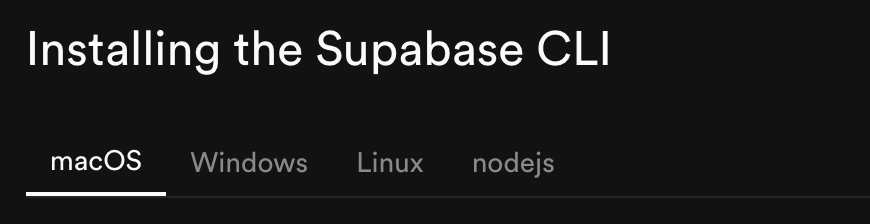
    Click on the environment you are using to install the CLI and it will provide the instructions.

    In my case (macOS), I used Homebrew via command line in Terminal.

    brew install supabase/tap/supabase
    

    Step 2: Clone the Lovable GitHub repo

    $ git clone <Your Repo URL>
    

    Step 3: Initialize Local Supabase

    Access the folder where you cloned the Lovable project from GitHub. There should already be a supabase directory. It may contain sub-directories like functions and migrations.

    % cd <Your Repo Name>
    

    You probably don’t want to commit any of the local configuration files to the repo which you share with Lovable. Add the following items to your .gitignore file:

    # Ignore Supabase local Development files
    supabase/seed.sql
    supabase/.branches/
    supabase/.temp/
    supabase/functions/.env
    supabase/config.toml
    

    Important: Make sure to save and commit the change to the .gitignore file before running supabase init. This way, Git won’t be trying to track the files Supabase will create.

    Next, run the Supabase initialization:

    <Your Repo Name>% supabase init
    

    Now that a local Supabase project has been initialized, the database can be connected to your remote project.

    To log into your Supabase account where the remote project is:

    <Your Repo Name>% supabase login
    

    The response will be a link to open in a browser.

    Hello from Supabase! Press Enter to open browser and login automatically.
    
    Here is your login link in case browser did not open https://supabase.com/dashboard/cli/login?session_id={...}


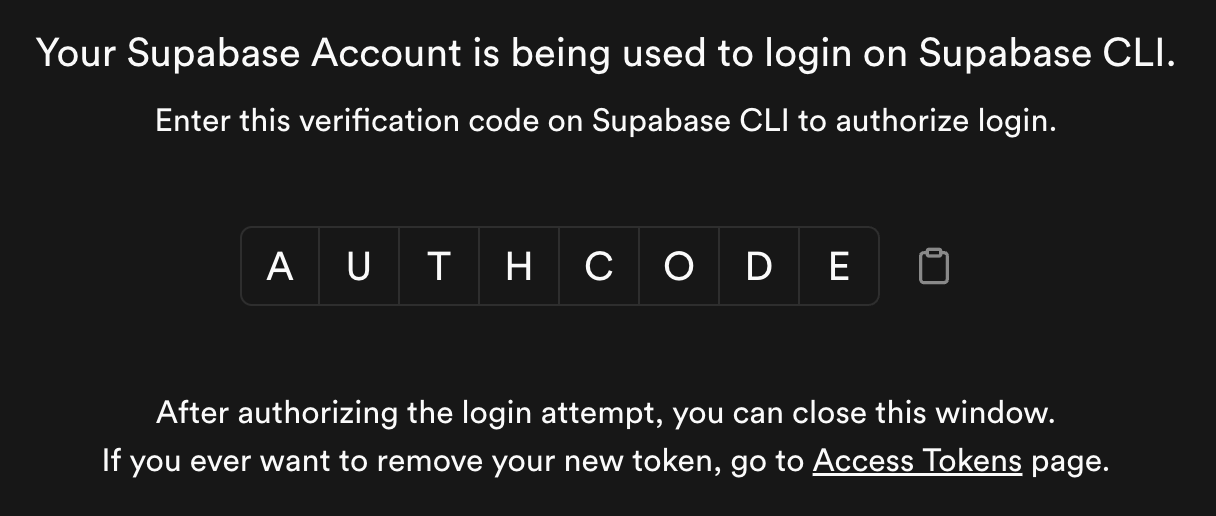
    The link will either prompt you to log in to your Supabase account or immediately redirect you to the authorization page. Once logged in, the authorization page will show a verification code. Copy this into your terminal.

    Enter your verification code: {AUTHCODE}
    
    Token cli_jessboctor@{machinename}.local_{...} created successfully.
    
    You are now logged in. Happy coding!
    

    Once you have logged in, you can link the local instance to a remote project:

    <Your Repo Name>% supabase link
    

    The response will be a list of the projects in your remote Supabase workspace. Use the ⬆️ and ⬇️ keys to highlight the project you want and press enter.

    Here, you may be asked for the database password for this project. This is not your user account password. You should have set the password when you created the Supabase project. If the password if valid, the supabase/config.toml file will be updated to reflect the project which you linked to.

    Step 5: Seed & Start the Database

    In order to set up with pre-populated data, you need to download a seed file from Supabase.

    <Your Repo Name>% supabase db dump --data-only > supabase/seed.sql


    This command will download a seed SQL file to your-repo-name/supabase/seed.sql

    To start the database:

    <Your Repo Name>% supabase start
    

    Once the servers have started, you should see a list of local URLs and ports which you can use for different things. For example, the “Studio” allows you to access a local version of the Supabase dashboard.

    Step 5: Update the environment keys

    Now that the local Supabase tables are running, we need to connect the app to the local tables rather than the remote ones.

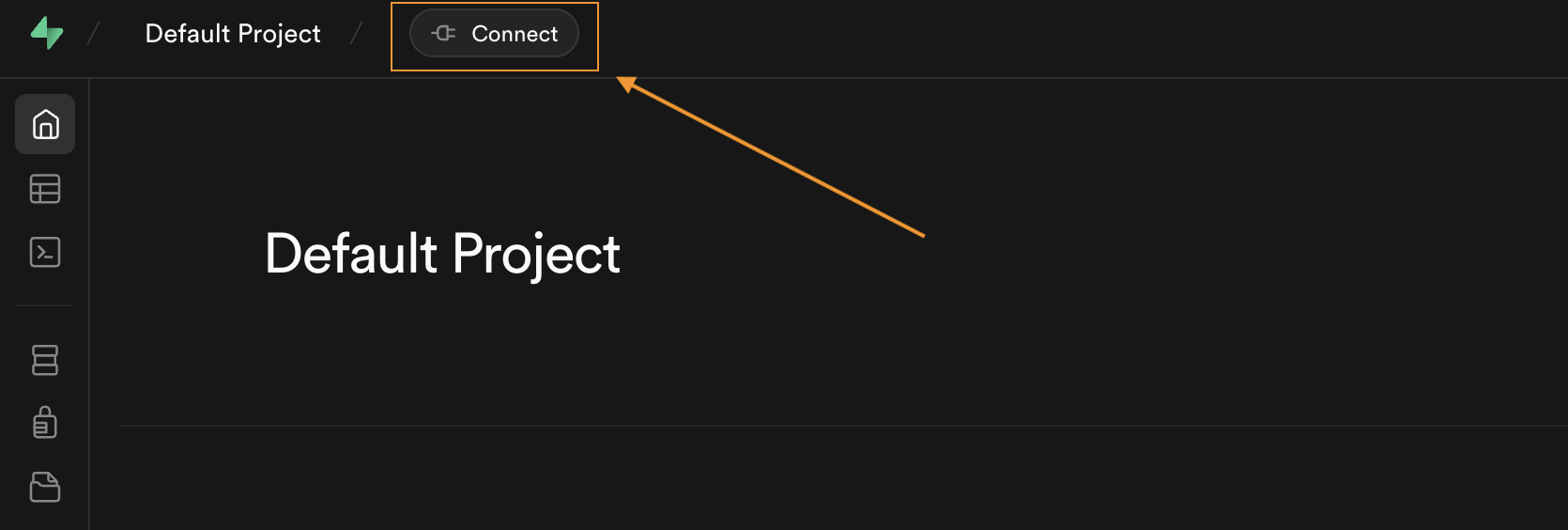
    Open the Supabase Studio URL in a browser (it is most likely http://127.0.0.1:54323). When you see the Supabase dashboard, click on the “Connect” button in the upper right-hand corner.

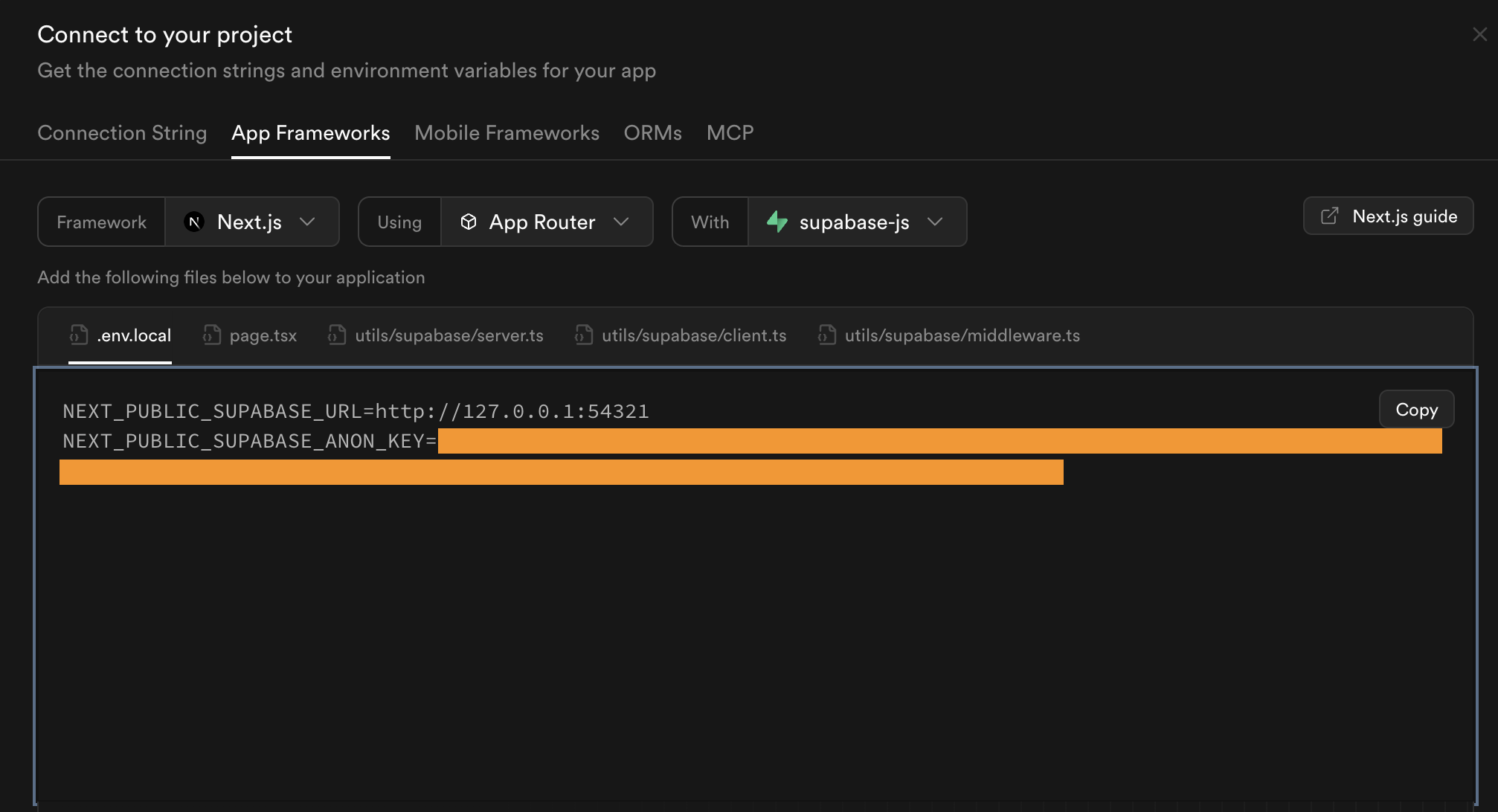
    When the connect dialogue opens, click on the “App Frameworks” button. You need to copy the “{…}_Supabase URL” and “{…}_Supabase_Anon_Key” from the dialogue,

    In your code editor, open up the your-repo-name/integrations/supabase/client.ts file. We need to replace the Supabase_URL and Supabase_Publishable_Key values. The file should look like this:

    // This file is automatically generated. Do not edit it directly.
    import { createClient } from '@supabase/supabase-js';
    import type { Database } from './types';
    
    SUPABASE_URL = "<Your Remote Subabase URL>";
    SUPABASE_PUBLISHABLE_KEY = "<A really long string>";
    
    // Import the supabase client like this:
    // import { supabase } from "@/integrations/supabase/client";
    
    export const supabase = createClient<Database>(SUPABASE_URL, SUPABASE_PUBLISHABLE_KEY);


    You will want to replace the values with the ones you copied from the local Supabase Studio Connect:

    // This file is automatically generated. Do not edit it directly.
    import { createClient } from '@supabase/supabase-js';
    import type { Database } from './types';
    
    SUPABASE_URL = "http://127.0.0.1:54321";
    SUPABASE_PUBLISHABLE_KEY = "<A really long but different string>";
    
    // Import the supabase client like this:
    // import { supabase } from "@/integrations/supabase/client";
    
    export const supabase = createClient<Database>(SUPABASE_URL, SUPABASE_PUBLISHABLE_KEY);


    You will also need to either create a .env.local file to replace the values in the .env file, or replace them in the .env file directly.

    Step 6: Start the webapp

    Conveniently, the README.md file from Lovable should include instructions on how to stand up a local version of the web app which was connected to the remote version of the Supabase project.

    # Step 1: Clone the repository using the project's Git URL.
    git clone <YOUR_GIT_URL>
    
    # Step 2: Navigate to the project directory.
    cd <YOUR_PROJECT_NAME>
    
    # Step 3: Install the necessary dependencies.
    npm i
    
    # Step 4: Start the development server with auto-reloading and an instant preview.
    npm run dev
    

    Running npm run dev will respond with another local URL (http://localhost:8080/). When you load this URL in a browser, you should see a local version of your Lovable app!

    That’s it! You should be ready to go!

    Pro-tip: Lovable commits the .env file into the Git repo. However, keeping track of the environment variables is a pain, not to mention, can lead to accidentally committing your local Supabase_URL and Anon_key to the repo (ask me how I know).

    Here is the workaround I figured out:

    1. Remove .env from the git repo using git rm --cached .env
    2. Add .env to your .gitignore file and commit the change
    3. Edit the .env file to contain a environment variable which can be easily set to “true” or “false”: `VITE_IS_LOCAL=”true”
    4. Edit the integrations/supabase/client.ts file to set the SUPABASE_URL and SUPABASE_PUBLISHABLE_KEY based on the environment variable.
    // This file is automatically generated. Do not edit it directly.
    import { createClient } from '@supabase/supabase-js';
    import type { Database } from './types';
    
    let SUPABASE_URL = "";
    let SUPABASE_PUBLISHABLE_KEY = "";
    const isLocal = import.meta.env.VITE_IS_LOCAL === "true";
    
    if (isLocal) {
        SUPABASE_URL = "http://127.0.0.1:54321";
        SUPABASE_PUBLISHABLE_KEY = "<The long local string>";
    } else {
        SUPABASE_URL = "<Remote project URL>";
        SUPABASE_PUBLISHABLE_KEY = "<The long remote string>";
    }
    
    // Import the supabase client like this:
    // import { supabase } from "@/integrations/supabase/client";
    
    export const supabase = createClient<Database>(SUPABASE_URL, SUPABASE_PUBLISHABLE_KEY);


    Deploying Changes

    In order to keep the version control continuous between Lovable and Supabase, you need to commit changes to any supabase/migrations and supabase/functions twice. First, via Supabase CLI to push the changes to the remote database and then second in Git to push the changes to Lovable.

    You can find information Migrations and deploying changes here: https://supabase.com/docs/guides/deployment/database-migrations

    You can find information Edge Functions and deploying changes here: https://supabase.com/docs/guides/functions/quickstart-dashboard


    Does this process work for you? Got any great tips on how to make it work even better? Let me know!